
ESP32 - LED Module
On a breadboard, a plain LED always comes with two small chores: find a resistor, and check which leg is the long one. The 10mm LED module takes both chores away. The resistor and a tiny driver are already soldered on the board, and the three pins are printed with their names, so you can plug it into an ESP32 in a few seconds and get a big, bright indicator for your project.
In this tutorial we will connect one LED module to an ESP32, make it flash once every two seconds while the Serial Monitor shows each state change, and then use PWM to make it breathe slowly from dark to full brightness and back.
This tutorial shows how to program the ESP32 using the Arduino language (C/C++) via the Arduino IDE. If you’d like to learn how to program the ESP32 with MicroPython, visit this ESP32 MicroPython - LED Module tutorial.
Hardware Used In This Tutorial
Or you can buy the following kits:
| 1 | × | DIYables ESP32 Starter Kit (ESP32 included) | |
| 1 | × | DIYables ESP32 S3 Starter Kit (ESP32 S3 included) | |
| 1 | × | DIYables Sensor Kit (18 sensors/displays) |
Buy Note: Want to make wiring easier? Try the LED Module. It already has a built-in resistor, so no extra parts needed!
Introduction to the LED Module
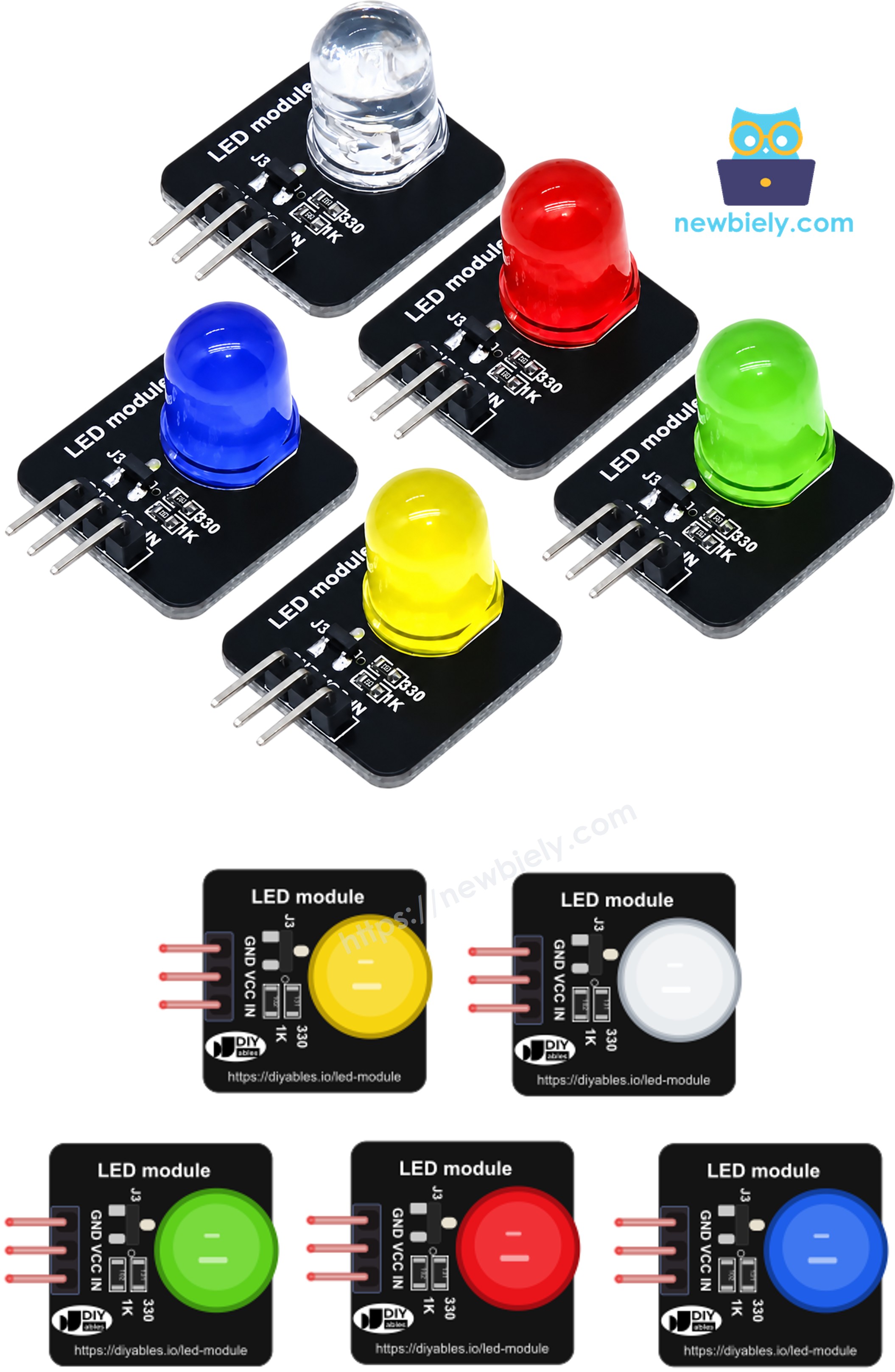
Think of the LED module as an LED that already brought its own helpers. On the small 20mm x 20mm black board there is a 10mm diffused LED, a 330Ω resistor that limits its current, a 1KΩ resistor on the input line, and a small transistor that works as a switch. The LED takes its power from the VCC pin, not from the ESP32's GPIO. The GPIO only tells the transistor when to switch, so it gives a tiny current and the LED still shines at full strength. This is a nice match for the ESP32, whose pins run at 3.3V and are not meant to feed a big LED directly. The modules come in a pack of five colors: red, yellow, blue, green and white.
The module has a 3-pin, 2.54mm right-angle male header that is already soldered. The pins are printed on the board in this order:
- GND pin: connect this pin to GND (0V) of the ESP32.
- VCC pin: connect this pin to 3.3V or 5V. The module works anywhere from 3.3V to 5V DC.
- IN pin: connect this pin to a GPIO of the ESP32. Writing HIGH turns the LED on, writing LOW turns it off. A PWM signal on this pin sets the brightness.
Compared with a bare LED, there is no anode or cathode to get wrong and no series resistor to calculate. You simply follow the labels.
Wiring Diagram
Only three jumper wires are needed. The module's GND goes to a GND pin of the ESP32, VCC goes to the 3V3 pin (the 5V/VIN pin is also fine), and IN goes to GPIO18. GPIO18 can output PWM, so the same wiring works for both examples in this tutorial.
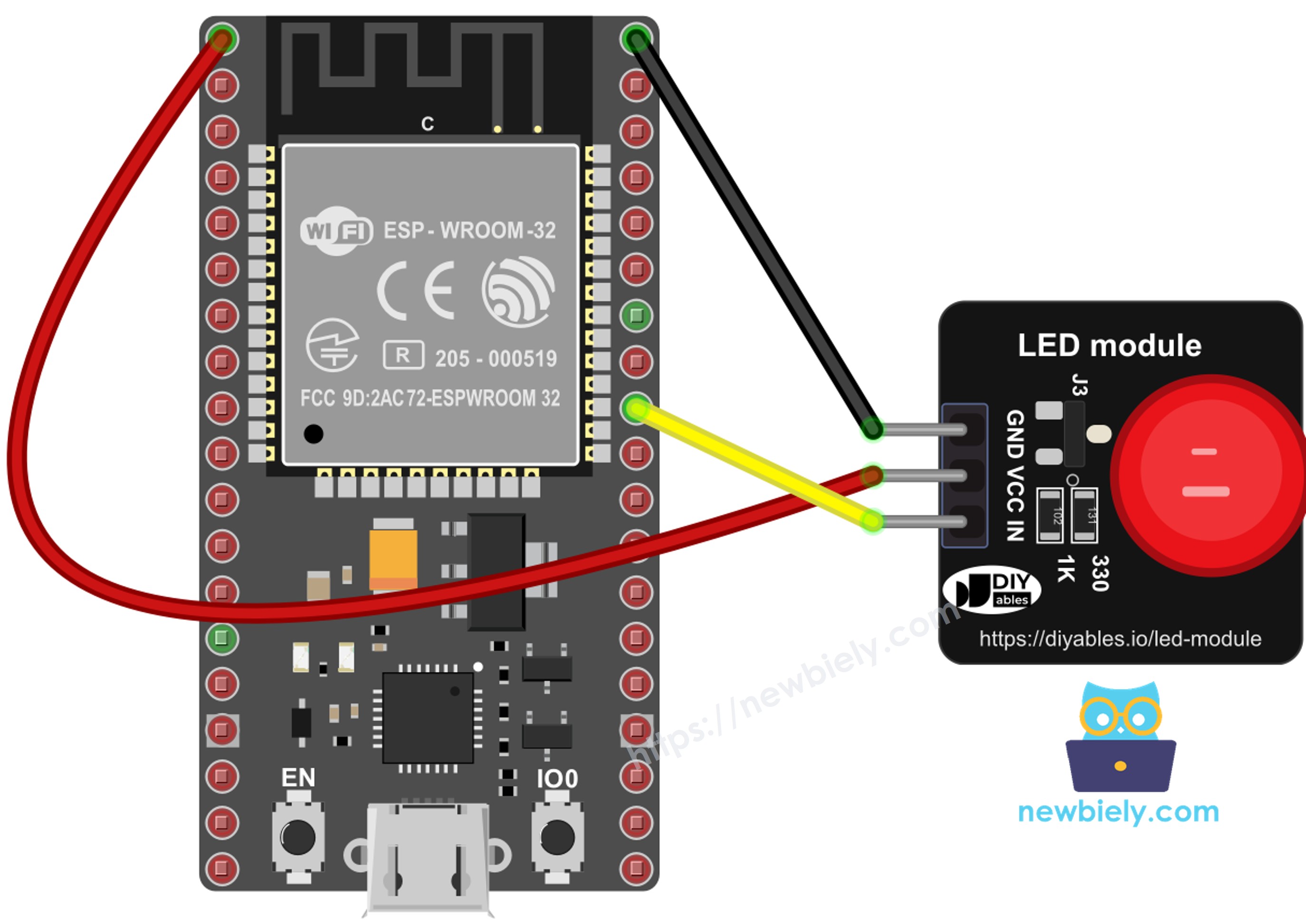
This image is created using Fritzing. Click to enlarge image
Wiring table between LED Module and ESP32
| LED Module | ESP32 |
|---|---|
| GND | → GND |
| VCC | → 3V3 |
| IN | → GPIO18 |
If you're unfamiliar with how to supply power to the ESP32 and other components, you can find guidance in the following tutorial: The best way to Power ESP32 and sensors/displays.
How To Program For LED Module
Because the driver is already on the board, the code is the same as for a normal LED. No library is needed.
- Set the GPIO that is wired to the IN pin as an output:
- Turn the LED on or off with digitalWrite():
- Set a brightness level from 0 (off) to 255 (full) with analogWrite():
ESP32 Code - Blink the LED Module
Quick Instructions
- If this is the first time you use ESP32, see how to setup environment for ESP32 on Arduino IDE.
- Connect the LED module to the ESP32 as in the wiring diagram above.
- Plug the ESP32 into your PC with the USB Type-C cable.
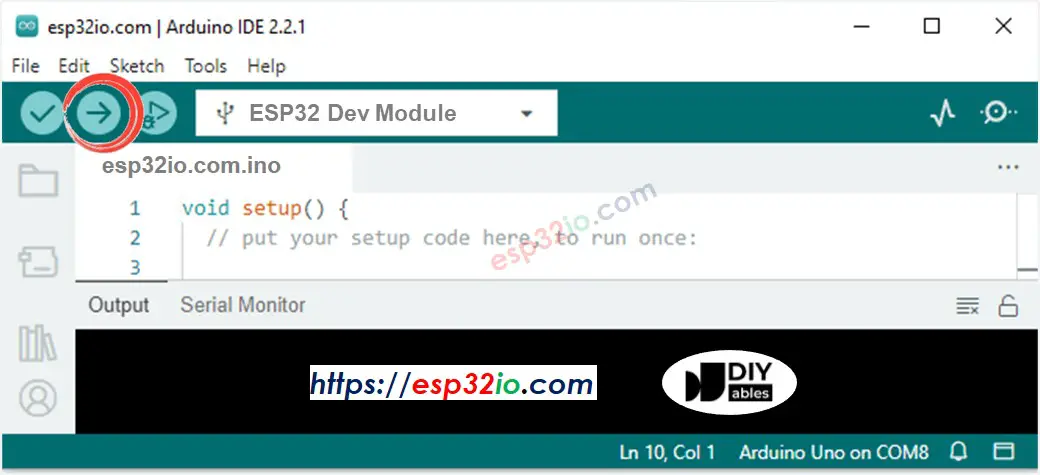
- Open Arduino IDE, then select the ESP32 board you have (e.g. ESP32 Dev Module) and its COM port.
- Copy the code above and paste it into a new sketch.
- Click the Upload button to compile the code and flash it to the ESP32.
- Look at the module: the LED lights up for one second, then goes dark for one second, again and again.
- Open the Serial Monitor at 9600 baud. A new line appears every time the LED changes:
※ NOTE THAT:
If the LED never lights up, check that VCC really goes to 3V3 or 5V. The IN pin alone cannot power the LED, because the module takes its LED current from VCC.
ESP32 Code - Fade the LED Module with PWM
The wiring stays the same. This time the ESP32 sends a PWM signal to the IN pin. The duty cycle climbs from 0 to 255 in steps of 5, then falls back to 0, so the LED glows up and fades down in about two seconds per cycle.
Quick Instructions
- Copy the code above into Arduino IDE.
- Upload it to the ESP32, the same way as the blink example.
- Watch the LED module: it slowly brightens, then slowly dims, without stopping.
- In the Serial Monitor, a message marks each end of the fade:
To make the fade slower or smoother, raise STEP_TIME or lower STEP in the code. Both examples use delay(), which blocks other code. When your ESP32 also has to read sensors or serve a web page, see ESP32 blink without delay.
Line-by-line Code Explanation
Both ESP32 codes above have a comment on each important line. Please read the comments in the code!
Video Tutorial
Making video is a time-consuming work. If the video tutorial is necessary for your learning, please let us know by subscribing to our YouTube channel , If the demand for video is high, we will make the video tutorial.