
ESP32 - GUVA-S12SD UV Sensor
Sunburn does not wait for a hot day. A cool, bright spring morning can carry more UV than a warm cloudy afternoon, and our skin cannot feel the difference. With a GUVA-S12SD UV sensor, an ESP32 can measure that invisible light for you. In this tutorial, the ESP32 first prints the raw ADC number and the calibrated voltage from the sensor, and then turns that voltage into a UV index with a level name, from Low to Extreme, that anyone can understand.
This tutorial shows how to program the ESP32 using the Arduino language (C/C++) via the Arduino IDE. If you’d like to learn how to program the ESP32 with MicroPython, visit this ESP32 MicroPython - GUVA-S12SD UV Sensor tutorial.
Hardware Used In This Tutorial
Or you can buy the following kits:
| 1 | × | DIYables ESP32 Starter Kit (ESP32 included) | |
| 1 | × | DIYables ESP32 S3 Starter Kit (ESP32 S3 included) | |
| 1 | × | DIYables Sensor Kit (18 sensors/displays) |
Introduction to the GUVA-S12SD UV Sensor
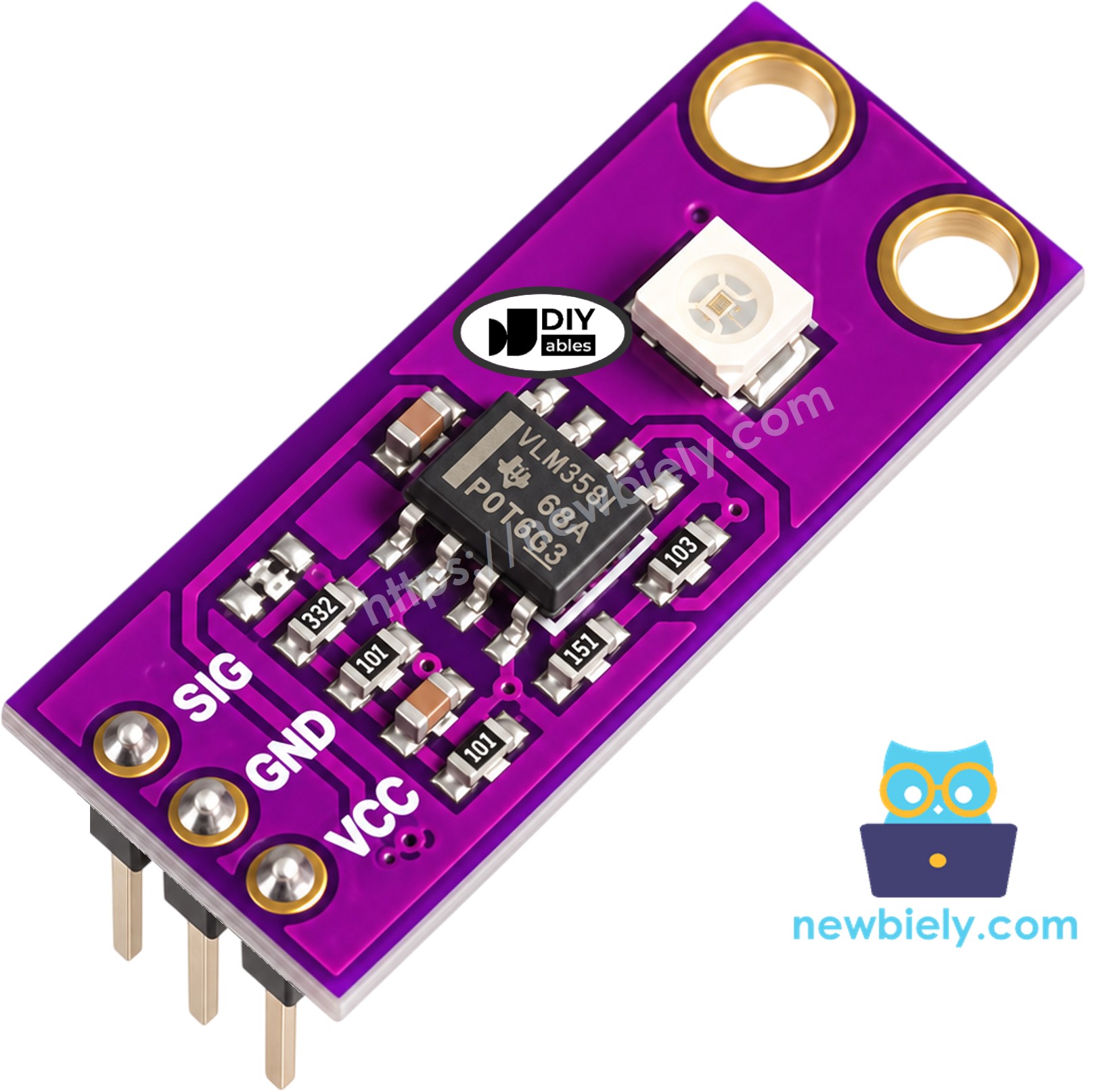
The module is a small purple board, about 11mm x 27mm, with two mounting holes so you can fix it inside a box or under a clear lid. Look for the tiny white square on it: that is the GUVA-S12SD UV photodiode. Next to it sits a VLM358 op-amp chip. Here is the idea in one sentence: when UV light falls on the photodiode, it lets a very small current flow, and the op-amp turns that current into a voltage on the SIG pin, which the ESP32 can measure with its ADC. More UV gives a higher voltage. The DIYables version comes with the header already soldered and is sold in a pack of two.
| GUVA-S12SD UV Sensor Module | |
|---|---|
| The sensing element | GUVA-S12SD UV photodiode |
| The amplifier | VLM358 op-amp, on the board |
| The light it senses | UV-A and UV-B, 240nm to 370nm |
| The viewing angle | 130 degrees |
| The supply voltage | 2.5V to 5V DC |
| The output | analog voltage, about 0V (no UV) to about 1V or more in strong sun |
| The board size | about 11mm x 27mm |
GUVA-S12SD UV Sensor Pinout
The three pins are printed on the board in the order SIG, GND, VCC:
- SIG pin: connect this pin to an ADC pin of the ESP32. Its voltage rises when more UV light reaches the sensor.
- GND pin: connect this pin to GND (0V).
- VCC pin: connect this pin to the 3V3 pin of the ESP32.
From voltage to UV index
Most hobby projects use one simple rule: every 0.1V on the SIG pin is about 1 point of UV index. So 0.5V means a UV index of about 5. This is a rough estimate, good enough for a reminder or a fun weather station, but it is not a calibrated UV meter. The UV index scale below comes from the WHO:
| UV Index | Level | What it means |
|---|---|---|
| 0 to 2 | Low | little risk for most people |
| 3 to 5 | Moderate | use sunscreen and a hat around midday |
| 6 to 7 | High | cover up and look for shade |
| 8 to 10 | Very High | skin can burn quickly |
| 11 or more | Extreme | avoid the midday sun |
※ NOTE THAT:
Glass windows, LED lamps and fluorescent tubes give almost no UV in the 240nm to 370nm range. So, inside a room, the sensor reads close to 0V, even when the room looks very bright. This is normal. Take the sensor outdoors into direct sunlight, or point a UV flashlight at it, to see real numbers.
What can you build with it? A sunscreen reminder that beeps when the index climbs above 3, a balcony UV index station, a tester that checks if an old UV lamp or UV LED still works, a part of an outdoor weather station, or a smart blind that closes when the sun gets too strong.
Wiring Diagram
The sensor needs only three wires. Both codes in this tutorial use the same wiring:
| UV Sensor Module | ESP32 |
|---|---|
| SIG | → GPIO36 (VP) |
| GND | → GND |
| VCC | → 3V3 |
GPIO36 belongs to ADC1. This matters: the ADC2 pins stop working when WiFi is on, so an ADC1 pin keeps the project ready for sending UV data to a phone or a web page later.
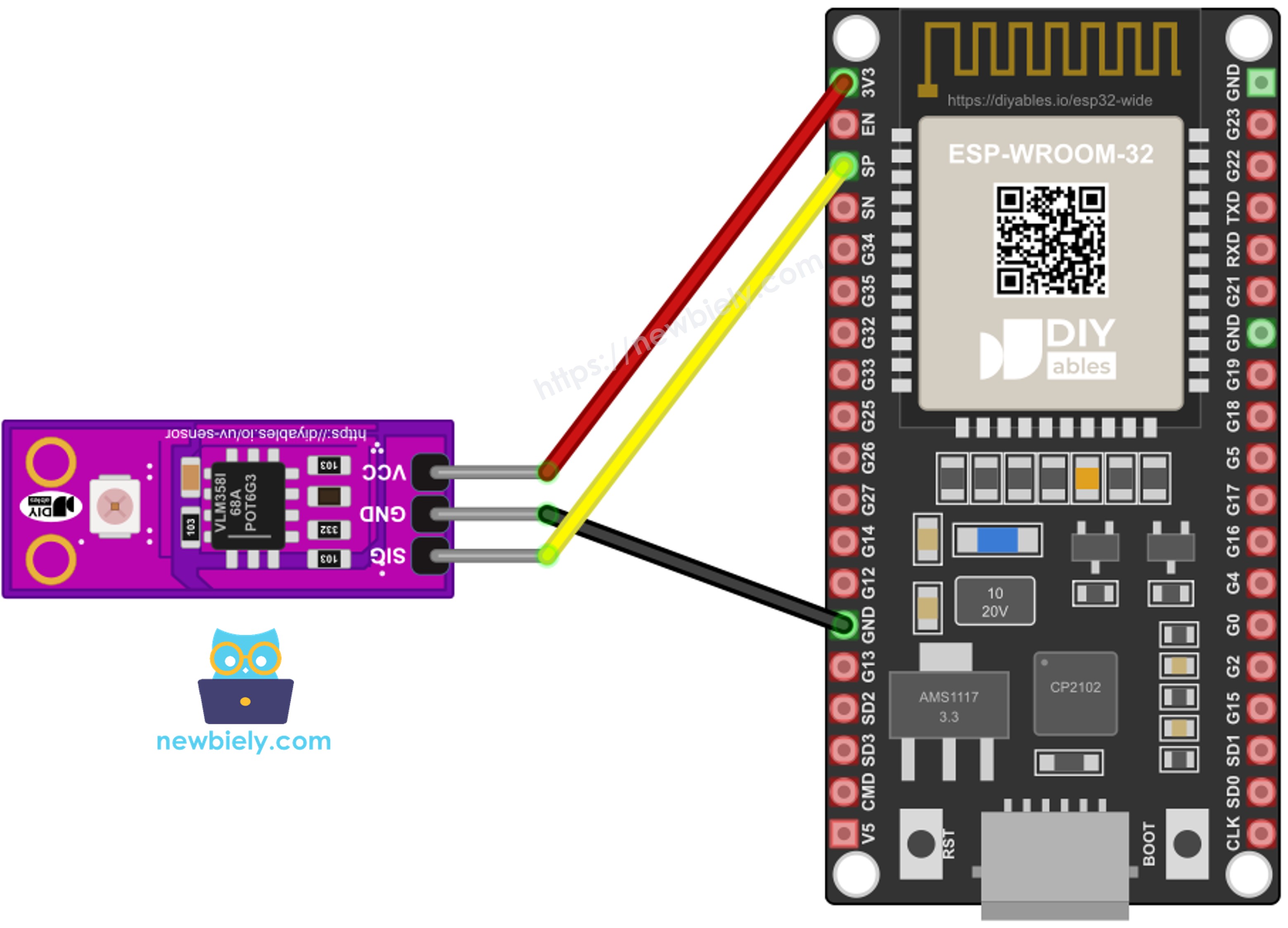
This image is created using Fritzing. Click to enlarge image
If you're unfamiliar with how to supply power to the ESP32 and other components, you can find guidance in the following tutorial: The best way to Power ESP32 and sensors/displays.
How To Program For GUVA-S12SD UV Sensor
No library is needed. The ESP32 core for Arduino IDE already has the two ADC functions we use.
- Set the ADC range so the pin can read the full output of the sensor:
- Get the raw ADC number with analogRead(). On the ESP32 it goes from 0 to 4095:
- Get the voltage with analogReadMilliVolts(). This function uses the calibration data stored inside each ESP32 chip, so its result is closer to the real voltage than a simple "raw x 3.3 / 4095" formula:
- Turn the voltage into an approximate UV index:
ESP32 Code - Read the Raw Value and the SIG Voltage
Before thinking about UV index, it is a good idea to see what the sensor really sends. Once per second, this code prints both the raw ADC number and the calibrated SIG voltage, with three decimals.
Quick Instructions
- If this is the first time you use ESP32, see how to setup environment for ESP32 on Arduino IDE.
- Wire the UV sensor to the ESP32 as in one of the diagrams above.
- Connect the ESP32 to your PC with the USB Type-C cable.
- Open Arduino IDE and pick your ESP32 board (e.g. ESP32 Dev Module) and the right COM port.
- Paste the code above into a new sketch.
- Click to the Upload button to compile the code and send it to the ESP32.
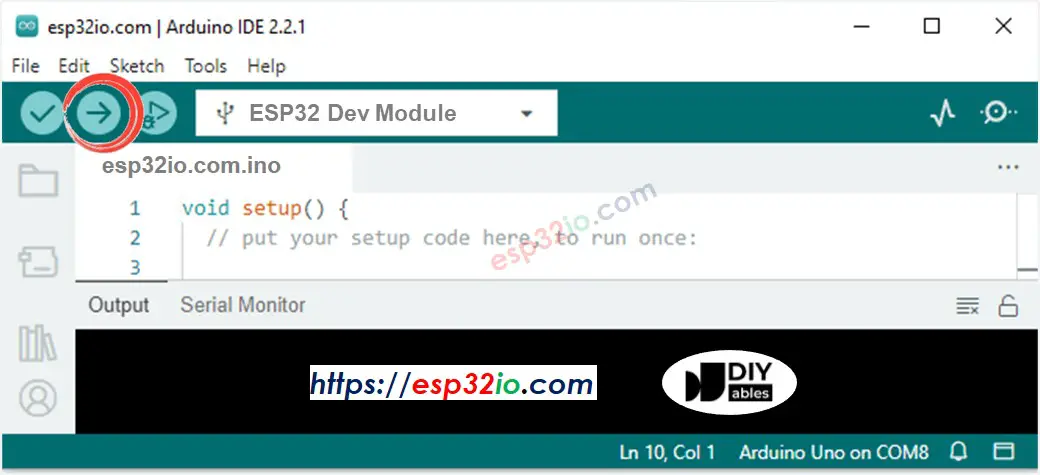
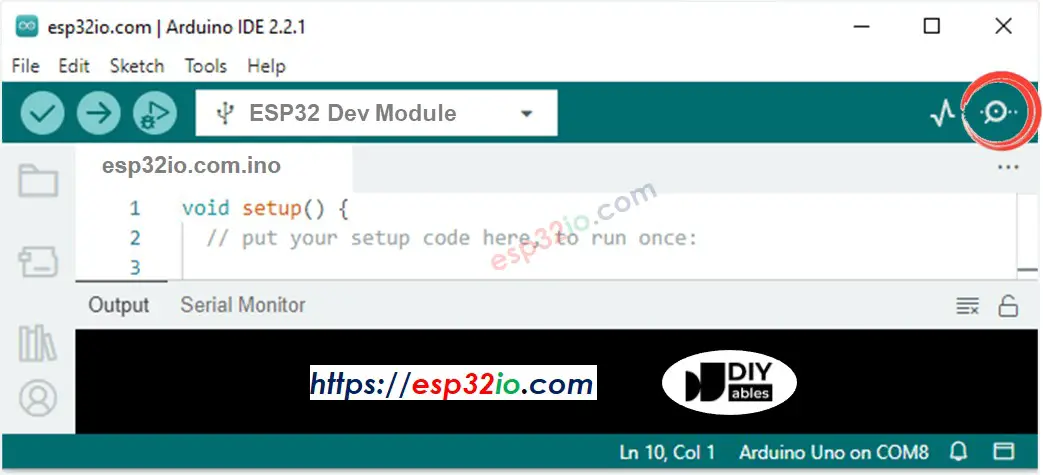
- Open the Serial Monitor at 9600 baud.
- Watch a few lines at your desk, then carry the ESP32 (a laptop or a USB power bank helps) to a sunny window that is open, or outside, and point the white square at the sky.
The first three lines were taken indoors: the raw value is 0 and the voltage is only a few millivolts. The ESP32 ADC is not very good at voltages under about 0.1V, so small indoor readings can jump a little or stay at 0. Outdoors, the voltage climbs to a few hundred millivolts. If you still see almost 0V in full sun, check the SIG wire and make sure nothing (glass, plastic, a phone case) covers the sensor.
ESP32 Code - Show the UV Index and Its Level
Now the voltage becomes something useful. To keep the number steady, the code takes 16 readings, averages them, divides the result by 0.1 to get the UV index, and prints it with one decimal next to the WHO level name.
Quick Instructions
- Keep the same wiring.
- Paste this code into Arduino IDE and upload it to the ESP32.
- Open the Serial Monitor at 9600 baud.
- Start in the shade, then move the sensor into direct sunlight, around midday if you can.
Compare your result with the UV index from a weather app for your city. If your sensor reads a bit higher or lower all the time, you can change the 0.1 in the code to match it better. To give the ESP32 a voice, add a buzzer and make it beep above a UV index of 3, as in ESP32 - Piezo Buzzer.
Line-by-line Code Explanation
Both ESP32 codes above have comments on their important lines. Please read the comments in the code!
Video Tutorial
Making video is a time-consuming work. If the video tutorial is necessary for your learning, please let us know by subscribing to our YouTube channel , If the demand for video is high, we will make the video tutorial.