A doorbell for your workshop, a "fire" key for a small game, a start/stop key for a data logger: many ESP32 projects need just one thing from the user, a press. This tutorial shows how to get that press into your ESP32 with the 3-pin button module, step by step, from reading the raw pin level, to catching clean press and release events with a short delay, and finally to the ezButton library, which does the debouncing for you without pausing your code.
This tutorial shows how to program the ESP32 using the Arduino language (C/C++) via the Arduino IDE. If you’d like to learn how to program the ESP32 with MicroPython, visit this ESP32 MicroPython - Button Module tutorial.
Disclosure: Some of the links in this section are Amazon affiliate links, meaning we may earn a commission at no additional cost to you if you make a purchase through them. Additionally, some links direct you to products from our own brand, DIYables .
Introduction to the Button Module
image source: diyables.io
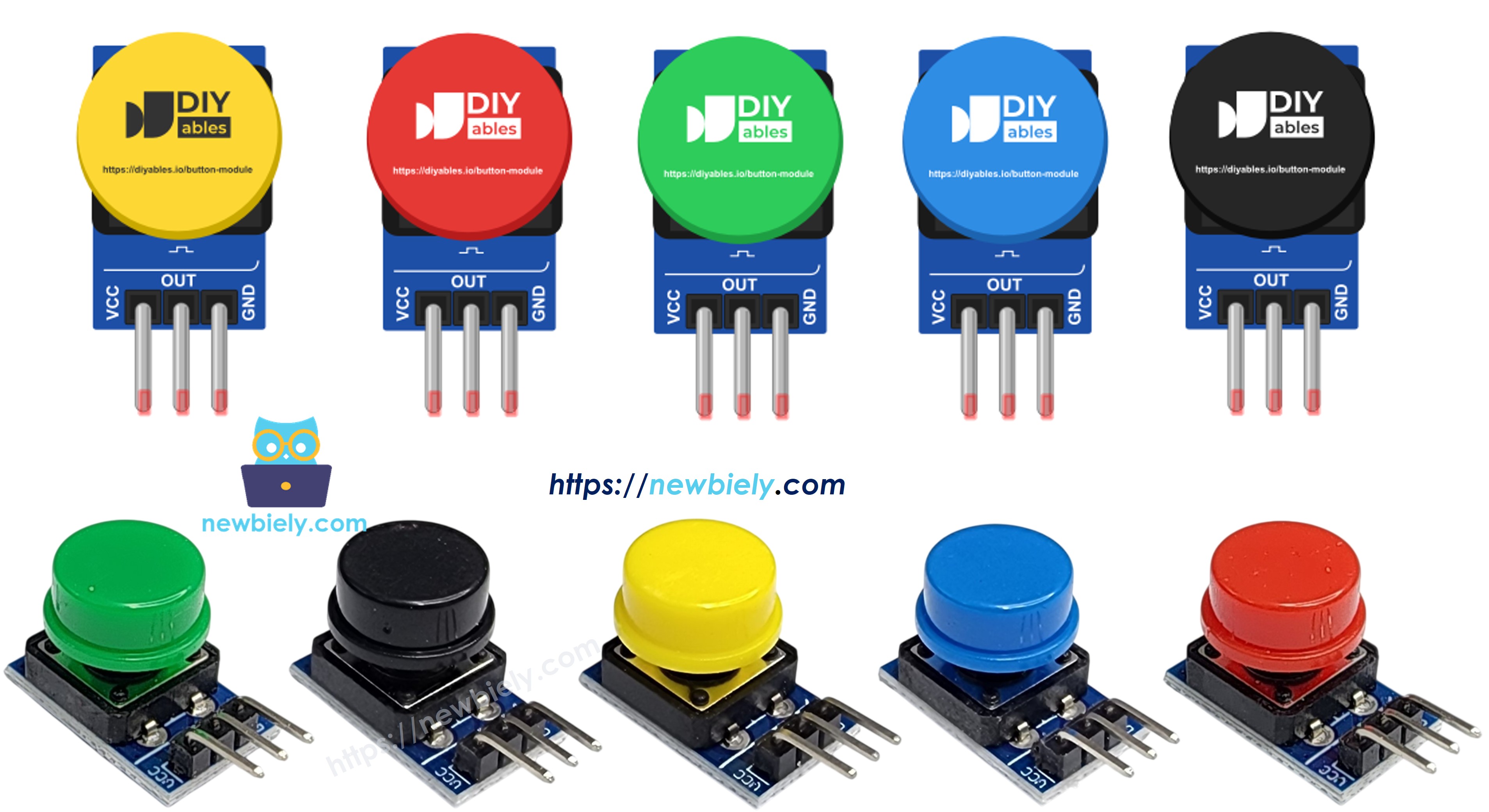
In short, the button module is a push button with its resistor already on board. A small tactile switch with a colored cap sits on a tiny PCB, next to a pull-down resistor. While nobody touches the cap, that resistor holds the output at LOW. Press the cap and the output jumps to the supply voltage, so the ESP32 reads HIGH. Let go and it falls back to LOW. One pack holds five modules, one in each color: red, yellow, green, blue and white, so you can give every key in your project its own color.
Button Module
The switch type
momentary tactile push button
The operating voltage
3.3V to 5V DC
The output when released
LOW
The output when pressed
HIGH (equal to VCC)
The pull resistor
pull-down, built into the module
The connector
3-pin male header, 2.54mm pitch
Button Module Pinout
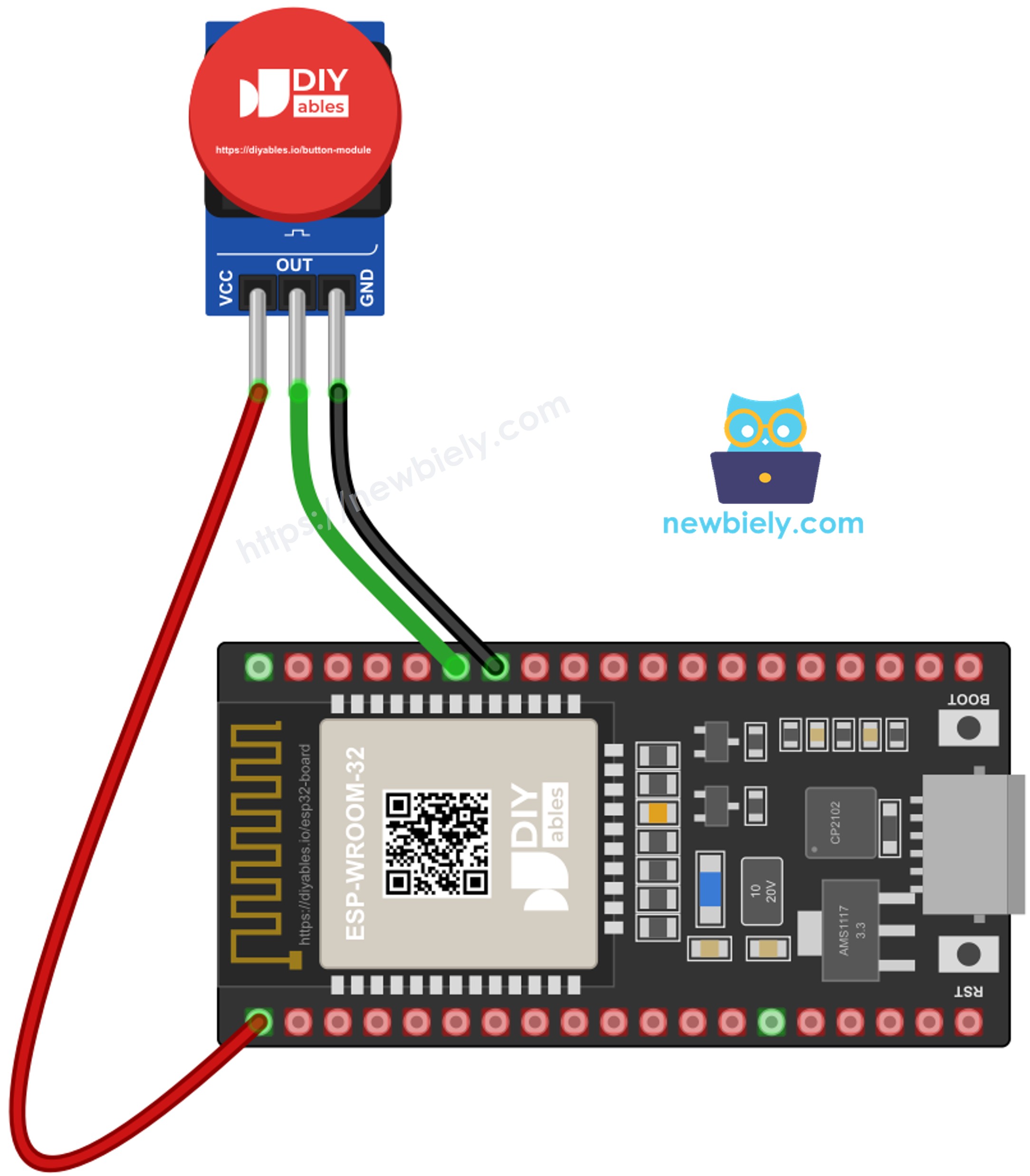
The three pins are printed on the board in the order VCC, OUT, GND:
VCC pin: connect this pin to 3V3 of the ESP32. Do not use the 5V or VIN pin (see the warning below).
OUT pin: connect this pin to a GPIO of the ESP32. It gives LOW when the cap is up and HIGH when the cap is down.
GND pin: connect this pin to GND (0V).
※ NOTE THAT:
When the cap is pressed, the OUT pin gives out the same voltage as the VCC pin. The ESP32 GPIO pins work at 3.3V and are not 5V tolerant. If VCC is wired to 5V or VIN, every press pushes 5V into GPIO21 and can damage the ESP32. Always power the module from the 3V3 pin.
There is one more thing every mechanical button does: its metal contacts bounce for a few milliseconds when they close or open. During that short time the pin flips between LOW and HIGH, so a single press can look like several presses to a fast chip like the ESP32. The second and third examples below fix this.
Why pick the module over a bare 4-pin push button? The bare button needs a pull-up or pull-down resistor (or INPUT_PULLUP in code), and its four legs are easy to wire the wrong way. The module has labeled pins and its own pull-down, and its logic is not inverted: pressed simply means HIGH. We highly recommend you using the button module if you are new to buttons. If you want to learn the bare button too, see the ESP32 - Button tutorial.
Wiring Diagram
The module needs three wires, and the same wiring is used for all three codes in this tutorial:
Button Module
ESP32
VCC
→ 3V3 (not 5V, not VIN)
OUT
→ GPIO21
GND
→ GND
This image is created using Fritzing. Click to enlarge image
The module already has a pull-down resistor, so the code only has to read a pin. No external resistor is needed.
Make GPIO21 a plain input. Do not write INPUT_PULLUP: the internal pull-up would work against the module's pull-down.
pinMode(21, INPUT);
Read the level of the OUT pin with digitalRead(). HIGH means the cap is pressed, LOW means it is up.
int level = digitalRead(21);
To catch the moment of a press or a release, keep the last level in a variable and compare it with the new one. When they differ, something happened.
ESP32 Code - Read the Raw State
This first code is the simplest one. Five times per second, the ESP32 reads GPIO21 and prints the level, plus a short word that says if the key is down or up.
/* * This ESP32 code is created by esp32io.com * * This ESP32 code is released in the public domain * * For more detail (instruction and wiring diagram), visit https://esp32io.com/tutorials/esp32-button-module */#define BUTTON_MODULE_PIN 21 // ESP32's GPIO21 connected to the OUT pin of the button modulevoidsetup() {Serial.begin(9600);// plain INPUT: the module already has its own pull-down resistor,// so do NOT use INPUT_PULLUP herepinMode(BUTTON_MODULE_PIN, INPUT);}voidloop() {int level = digitalRead(BUTTON_MODULE_PIN); // HIGH = pressed, LOW = releasedSerial.print("OUT pin = ");Serial.print(level);if (level == HIGH)Serial.println(" -> key is down");elseSerial.println(" -> key is up");delay(200); // print 5 lines per second, easy to read}
Wire the button module to the ESP32 as in one of the diagrams above. Check twice that VCC goes to 3V3.
Connect the ESP32 to your PC with the USB Type-C cable.
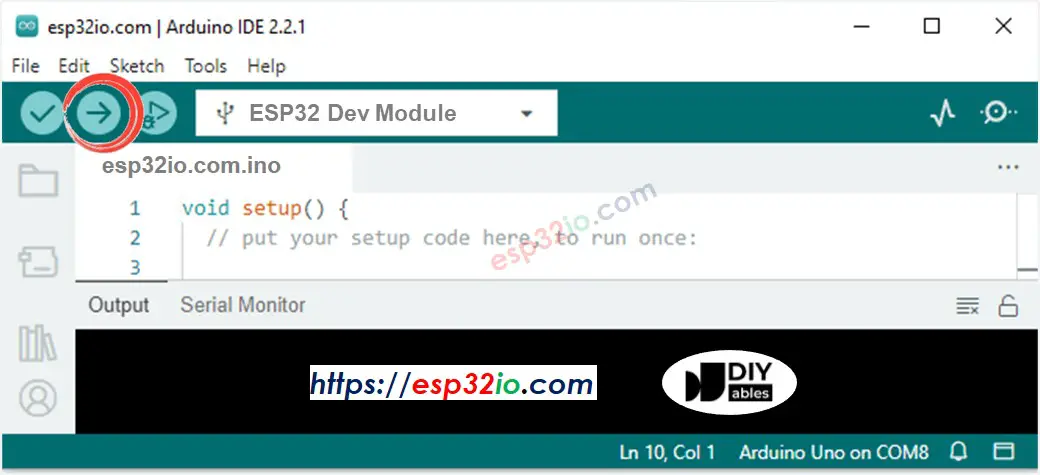
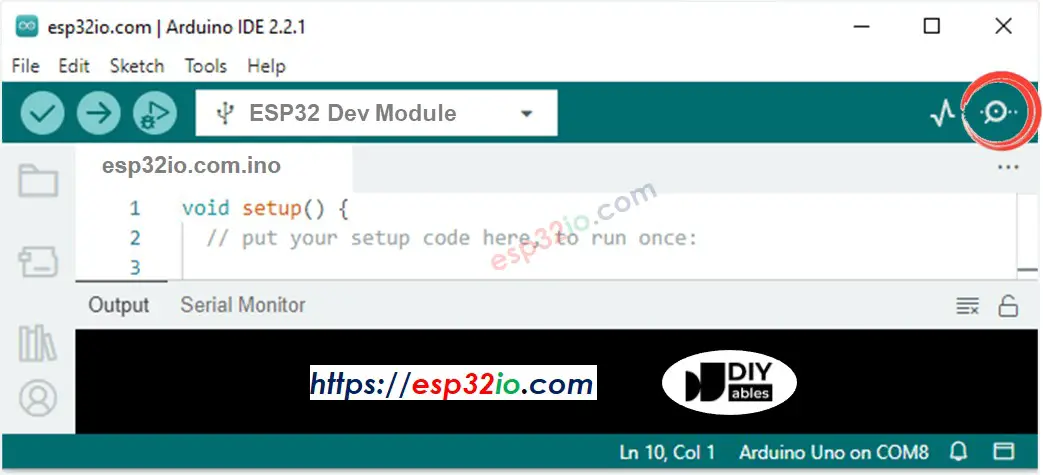
Open Arduino IDE and choose your ESP32 board (e.g. ESP32 Dev Module) and its COM port.
Paste the code above into a new sketch.
Click to the Upload button to build the code and send it to the ESP32.
Open the Serial Monitor and set the baud rate to 9600.
Do nothing for two or three seconds, press the button and hold it for about a second, then release it.
Newbiely | Arduino IDE 2.3.8
──
☐
✕
File
Edit
Sketch
Tools
Help
ESP32 Dev Module
Newbiely.ino
···
8Serial.println("Hello World!");
Output
Serial Monitor
Message (Enter to send message to 'ESP32 Dev Module' on 'COM15')
New Line
9600 baud
OUT pin = 0 -> key is up
OUT pin = 1 -> key is down
OUT pin = 0 -> key is up
Ln 11, Col 1
ESP32 Dev Module on COM15
2
The value stays 0 while the cap is up. There is no random 0/1 noise, because the module's pull-down holds the pin firmly at LOW. If you see 1 all the time, check the OUT and VCC wires. They may be swapped.
ESP32 Code - Detect Press and Release Events (Debounce with delay)
Printing the level many times per second is not what a doorbell or a game key needs. Those projects want one message per press. This code remembers the last confirmed state. When a new reading is different, it waits 50 milliseconds for the contacts to stop bouncing, reads the pin again, and only then reports the change.
/* * This ESP32 code is created by esp32io.com * * This ESP32 code is released in the public domain * * For more detail (instruction and wiring diagram), visit https://esp32io.com/tutorials/esp32-button-module */#define BUTTON_MODULE_PIN 21 // ESP32's GPIO21 connected to the OUT pin of the button module#define DEBOUNCE_DELAY 50 // milliseconds to wait for the contacts to settleint lastState = LOW; // the module rests at LOW (pull-down), so start with LOWvoidsetup() {Serial.begin(9600);pinMode(BUTTON_MODULE_PIN, INPUT); // the module has its own pull-down resistor}voidloop() {int reading = digitalRead(BUTTON_MODULE_PIN);if (reading != lastState) { // the level looks different from beforedelay(DEBOUNCE_DELAY); // wait until the bouncing is over (this blocks the loop) reading = digitalRead(BUTTON_MODULE_PIN); // read again to confirmif (reading != lastState) { // still different -> it is a real changeif (reading == HIGH)Serial.println("The button is pressed");elseSerial.println("The button is released"); lastState = reading; // remember the confirmed state } }}
Quick Instructions
Keep the same wiring.
Paste this code into Arduino IDE and upload it to the ESP32.
Press the button three times, at any speed you like.
The Serial Monitor shows exactly one pair of lines for each press:
Newbiely | Arduino IDE 2.3.8
──
☐
✕
File
Edit
Sketch
Tools
Help
ESP32 Dev Module
Newbiely.ino
···
8Serial.println("Hello World!");
Output
Serial Monitor
Message (Enter to send message to 'ESP32 Dev Module' on 'COM15')
New Line
9600 baud
The button is pressed
The button is released
The button is pressed
The button is released
The button is pressed
The button is released
Ln 11, Col 1
ESP32 Dev Module on COM15
2
This works well, but delay() blocks the loop: during those 50 milliseconds the ESP32 can do nothing else. For a project that also blinks LEDs, reads sensors or serves a web page, the next example is a better choice.
ESP32 Code - Button Module with the ezButton Library (Non-blocking Debounce)
The ezButton library checks the time with millis() instead of waiting, so the loop never stops. It gives you the steady (debounced) state of the button and tells you when a press or a release just happened. Because the module has its own pull-down resistor, the button object is created with the EXTERNAL_PULLDOWN mode. In this mode, HIGH means pressed. This mode needs ezButton version 1.0.6 or newer.
Button.setDebounceTime(50) sets the debounce time in milliseconds.
Button.loop() must be called first in every loop.
Button.getState() returns the steady state: HIGH (pressed) or LOW (released).
Button.isPressed() and button.isReleased() return true once for each event.
/* * This ESP32 code is created by esp32io.com * * This ESP32 code is released in the public domain * * For more detail (instruction and wiring diagram), visit https://esp32io.com/tutorials/esp32-button-module */#include <ezButton.h>#define BUTTON_MODULE_PIN 21 // ESP32's GPIO21 connected to the OUT pin of the button module// EXTERNAL_PULLDOWN: the module has its own pull-down resistor, so HIGH means pressedezButtonbutton(BUTTON_MODULE_PIN, EXTERNAL_PULLDOWN);int lastSteadyState = -1; // used to print the steady state only when it changesvoidsetup() {Serial.begin(9600);button.setDebounceTime(50); // 50 milliseconds debounce time}voidloop() {button.loop(); // MUST be called first. It never blocks the loopif (button.isPressed())Serial.println("The button is pressed");if (button.isReleased())Serial.println("The button is released");int state = button.getState(); // the debounced (steady) state: HIGH or LOWif (state != lastSteadyState) {Serial.print("Steady state: ");Serial.println(state == HIGH ? "HIGH (held down)" : "LOW (not touched)"); lastSteadyState = state; }// other tasks can run here without waiting for the button}
Quick Instructions
Keep the same wiring.
In Arduino IDE, click to the Libraries icon on the left bar.
Type ezButton in the search box, then find the ezButton library by ArduinoGetStarted.com.
Click to the Install button. If an older version is already installed, update it to 1.0.6 or newer.
Search for ezButton created by ArduinoGetStarted.com and click the Install button.
Newbiely | Arduino IDE 2.3.8
──
☐
✕
File
Edit
Sketch
Tools
Help
ESP32 Dev Module
Library Manager
ezButton
Type:
All
Topic:
All
ezButtonby ArduinoGetStarted.com
Button library supports debounce, pressed/released events and the press counting. It is easy to use with multiple buttons. The library can be used for push-button, momentary switches, toggle switch, magnetic contact switch (door sensor)... It is designed for not only beginners but also experienced users.
More info
1.0.6
INSTALL
Newbiely.ino
···
1
voidsetup() {
Output
Serial Monitor
Ln 1, Col 1
ESP32 Dev Module on COM15
1
Paste the code above into Arduino IDE and upload it to the ESP32.
Press the button twice, holding it a little longer the second time.
Newbiely | Arduino IDE 2.3.8
──
☐
✕
File
Edit
Sketch
Tools
Help
ESP32 Dev Module
Newbiely.ino
···
8Serial.println("Hello World!");
Output
Serial Monitor
Message (Enter to send message to 'ESP32 Dev Module' on 'COM15')
New Line
9600 baud
Steady state: LOW (not touched)
The button is pressed
Steady state: HIGH (held down)
The button is released
Steady state: LOW (not touched)
The button is pressed
Steady state: HIGH (held down)
The button is released
Steady state: LOW (not touched)
Each of the three ESP32 codes above has comments on its important lines. Please read the comments in the code!
Video Tutorial
Making video is a time-consuming work. If the video tutorial is necessary for your learning, please let us know by subscribing to our YouTube channel , If the demand for video is high, we will make the video tutorial.
Please feel free to share the link of this tutorial. However, Please do not use our content on any other websites. We invested a lot of effort and time to create the content, please respect our work!