
ESP32 - DIYables Bluetooth App Joystick

Overview

The Bluetooth Joystick example provides an interactive 2D joystick control accessible through the DIYables Bluetooth STEM app. Designed for ESP32 boards with support for both BLE (Bluetooth Low Energy) and Classic Bluetooth connections. The joystick sends real-time X and Y coordinate values ranging from -100 to +100, making it ideal for robot control, motor driving, servo positioning, and any application requiring directional input.

This example supports two Bluetooth modes:

  • ESP32 BLE (Bluetooth Low Energy): Works on both Android and iOS
  • ESP32 Classic Bluetooth: Works on Android only. iOS does not support Classic Bluetooth. Use BLE if you need iOS support.
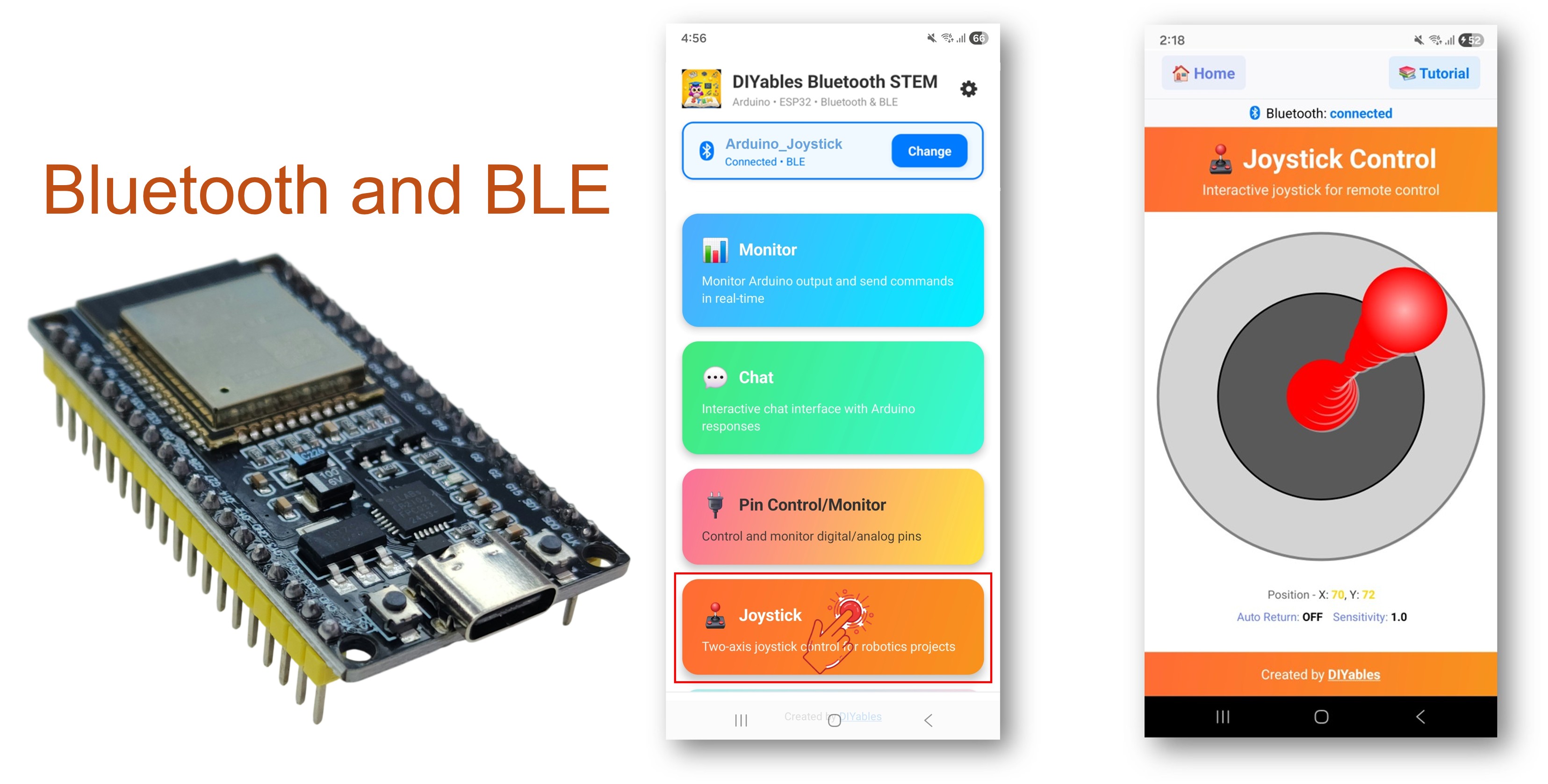
ESP32 Bluetooth Joystick Example - Interactive 2D Control Interface Tutorial

Features

  • 2D Control: X and Y axes with values from -100 to +100
  • Real-time Updates: Instant position updates via Bluetooth communication
  • Auto-Return Option: Configurable auto-return to center position (0, 0)
  • Adjustable Sensitivity: Configure minimum movement threshold to filter small changes
  • Robot Compatible: Values easily mapped to motor driver inputs
  • BLE & Classic Bluetooth: Choose the Bluetooth mode that suits your project
  • Cross-Platform: BLE mode works on both Android and iOS; Classic Bluetooth works on Android
  • Low Power Option: BLE mode consumes less power than Classic Bluetooth

Hardware Used In This Tutorial

1×ESP-WROOM-32 Dev Module
1×Alternatively, ESP32 Uno-form board
1×Alternatively, ESP32 S3 Uno-form board
1×USB Cable Type-A to Type-C (for USB-A PC)
1×USB Cable Type-C to Type-C (for USB-C PC)
1×Breadboard
1×Jumper Wires
1×Recommended: Screw Terminal Expansion Board for ESP32
1×Recommended: Breakout Expansion Board for ESP32
1×Recommended: Power Splitter for ESP32

Or you can buy the following kits:

1×DIYables ESP32 Starter Kit (ESP32 included)
1×DIYables Sensor Kit (18 sensors/displays)
Disclosure: Some of the links in this section are Amazon affiliate links, meaning we may earn a commission at no additional cost to you if you make a purchase through them. Additionally, some links direct you to products from our own brand, DIYables .

ESP32 Code

Quick Instructions

Follow these instructions step by step:

  • If this is your first time using the ESP32, refer to the tutorial on setting up the environment for ESP32 in the Arduino IDE.
  • Connect the ESP32 board to your computer using a USB cable.
  • Launch the Arduino IDE on your computer.
  • Select the appropriate ESP32 board and COM port.
  • Navigate to the Libraries icon on the left bar of the Arduino IDE.
  • Search "DIYables Bluetooth", then find the DIYables Bluetooth library by DIYables
  • Click Install button to install the library.
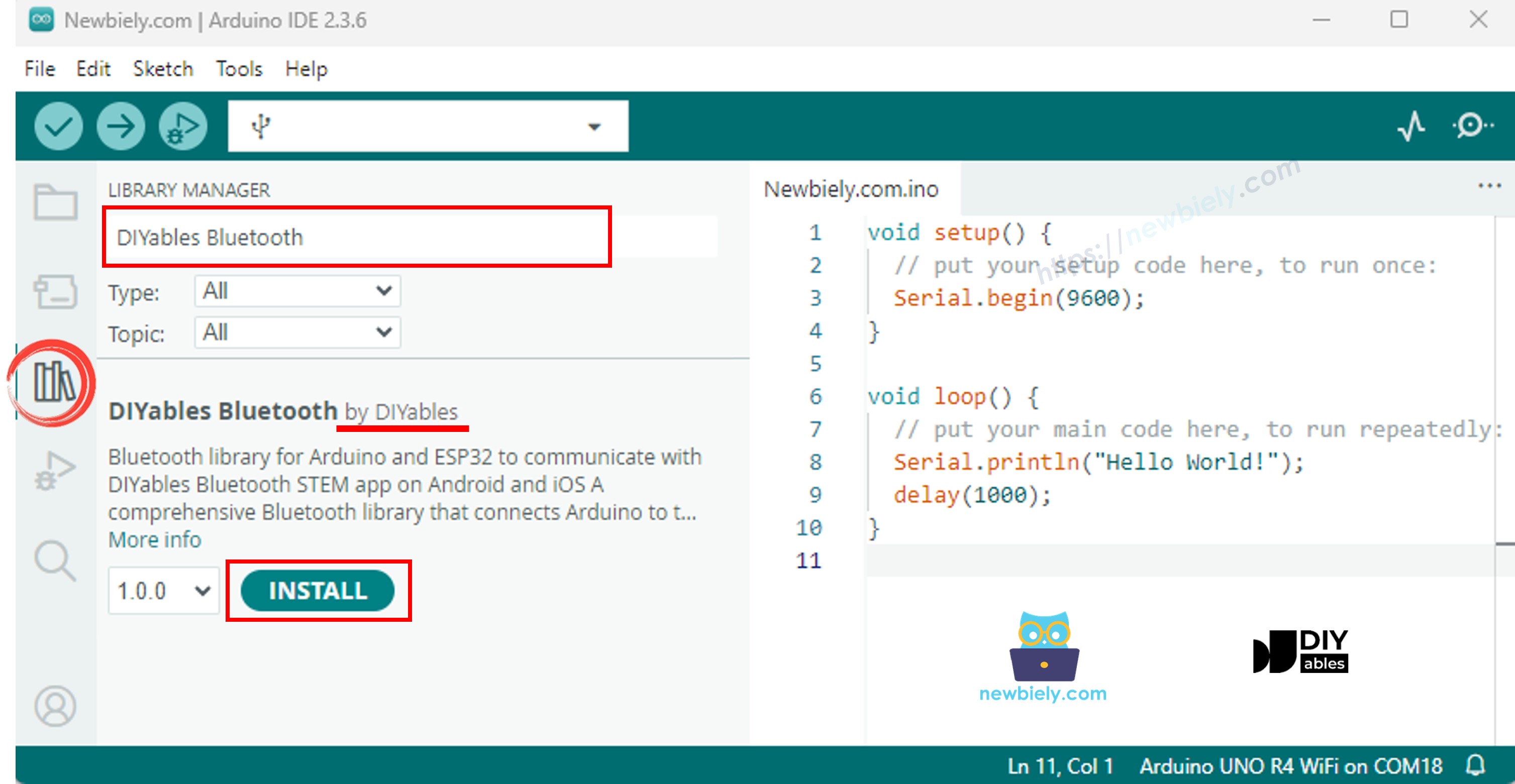
ESP32 DIYables Bluetooth library
  • You will be asked for installing some other library dependencies
  • Click Install All button to install all library dependencies.
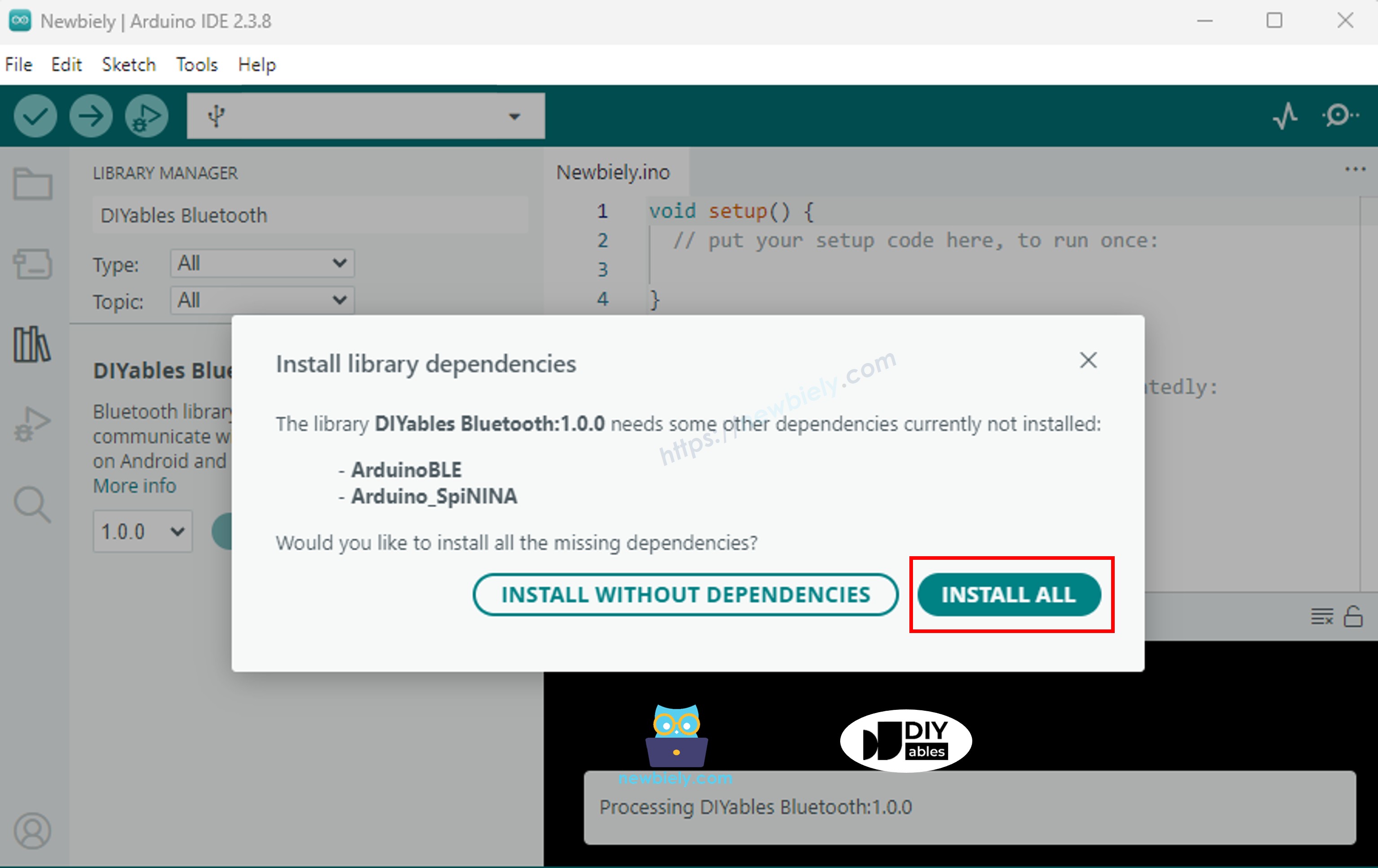
ESP32 DIYables Bluetooth dependency

Choose one of the two Bluetooth modes below depending on your needs:

ESP32 Classic Bluetooth Code (works with app on Android only)

Note: Classic Bluetooth is NOT supported on iOS. If you need iOS support, use the BLE code below.

  • On Arduino IDE, Go to File Examples DIYables Bluetooth Esp32Bluetooth_Joystick example, or copy the above code and paste it to the editor of Arduino IDE
/* * DIYables Bluetooth Library - ESP32 Classic Bluetooth Joystick Example * Works with DIYables Bluetooth STEM app on Android * Note: Classic Bluetooth is NOT supported on iOS. Use BLE examples for iOS support. * * This example demonstrates the Bluetooth Joystick feature: * - Interactive joystick control via Bluetooth * - Real-time X/Y coordinate values (-100 to +100) * - Control pins based on joystick position * * Compatible Boards: * - ESP32 (all variants with Classic Bluetooth) * - ESP32-WROOM-32 * - ESP32-DevKitC * - ESP32-WROVER * * Note: Select "Huge APP (3MB No OTA/1MB SPIFFS)" partition scheme * in Arduino IDE: Tools > Partition Scheme * * Setup: * 1. Upload the sketch to your ESP32 * 2. Open Serial Monitor (115200 baud) to see connection status * 3. Use DIYables Bluetooth App to connect and control the joystick * * Tutorial: https://diyables.io/bluetooth-app * Author: DIYables */ #include <DIYables_BluetoothServer.h> #include <DIYables_BluetoothJoystick.h> #include <platforms/DIYables_Esp32Bluetooth.h> // Create Bluetooth instances DIYables_Esp32Bluetooth bluetooth("ESP32_Joystick"); DIYables_BluetoothServer bluetoothServer(bluetooth); // Create Joystick app instance // Configure with autoReturn=false and sensitivity=5 (minimum 5% change to trigger updates) DIYables_BluetoothJoystick bluetoothJoystick(false, 5); // Variables to store current joystick values int currentJoystickX = 0; int currentJoystickY = 0; void setup() { Serial.begin(115200); delay(1000); Serial.println("DIYables Bluetooth - ESP32 Joystick Example"); // TODO: initialize your hardware pins here // Initialize Bluetooth server with platform-specific implementation bluetoothServer.begin(); // Add joystick app to server bluetoothServer.addApp(&bluetoothJoystick); // Set up connection event callbacks bluetoothServer.setOnConnected([]() { Serial.println("Bluetooth connected!"); }); bluetoothServer.setOnDisconnected([]() { Serial.println("Bluetooth disconnected!"); }); // Set up joystick callback for position changes bluetoothJoystick.onJoystickValue([](int x, int y) { // Store the received values currentJoystickX = x; currentJoystickY = y; // Print joystick position values (-100 to +100) Serial.print("Joystick - X: "); Serial.print(x); Serial.print(", Y: "); Serial.println(y); // TODO: Add your control logic here based on joystick position // Examples: // - Control motors: if (x > 50) { /* move right */ } // - Control servos: servo.write(map(y, -100, 100, 0, 180)); // - Control LEDs: ledcWrite(channel, map(abs(x), 0, 100, 0, 255)); // - Send commands to other devices via Serial, I2C, SPI, etc. }); // Optional: Handle requests for current joystick values (when app loads) bluetoothJoystick.onGetConfig([]() { // Send the stored joystick values back to the app bluetoothJoystick.send(currentJoystickX, currentJoystickY); Serial.print("App requested values - Sent: X="); Serial.print(currentJoystickX); Serial.print(", Y="); Serial.println(currentJoystickY); }); // You can change configuration at runtime: // bluetoothJoystick.setAutoReturn(false); // Disable auto-return // bluetoothJoystick.setSensitivity(10.0); // Only send updates when joystick moves >10% (less sensitive) Serial.println("Waiting for Bluetooth connection..."); } void loop() { // Handle Bluetooth server communications bluetoothServer.loop(); // TODO: Add your main application code here delay(10); }
  • Click Upload button on Arduino IDE to upload code to ESP32
  • Open the Serial Monitor
  • Check out the result on Serial Monitor. It looks like the below:
COM6
Send
DIYables Bluetooth - ESP32 Joystick Example Waiting for Bluetooth connection...
Autoscroll Show timestamp
Clear output
9600 baud  
Newline  

ESP32 BLE Code (works with app on both Android and iOS)

  • On Arduino IDE, Go to File Examples DIYables Bluetooth Esp32BLE_Joystick example, or copy the above code and paste it to the editor of Arduino IDE
/* * DIYables Bluetooth Library - ESP32 BLE Joystick Example * Works with DIYables Bluetooth STEM app on Android and iOS * * This example demonstrates the Bluetooth Joystick feature: * - Interactive joystick control via Bluetooth * - Real-time X/Y coordinate values (-100 to +100) * - Control pins based on joystick position * * Compatible Boards: * - ESP32-WROOM-32 * - ESP32-DevKitC * - ESP32-WROVER * - ESP32-S3 * - ESP32-C3 * - Any ESP32 board supporting BLE * * Note: Select "Huge APP (3MB No OTA/1MB SPIFFS)" partition scheme * in Arduino IDE: Tools > Partition Scheme * * Setup: * 1. Upload the sketch to your ESP32 * 2. Open Serial Monitor (115200 baud) to see connection status * 3. Use DIYables Bluetooth App to connect and control the joystick * * Tutorial: https://diyables.io/bluetooth-app * Author: DIYables */ #include <DIYables_BluetoothServer.h> #include <DIYables_BluetoothJoystick.h> #include <platforms/DIYables_Esp32BLE.h> // BLE Configuration const char* DEVICE_NAME = "ESP32BLE_Joystick"; const char* SERVICE_UUID = "19B10000-E8F2-537E-4F6C-D104768A1214"; const char* TX_UUID = "19B10001-E8F2-537E-4F6C-D104768A1214"; const char* RX_UUID = "19B10002-E8F2-537E-4F6C-D104768A1214"; // Create Bluetooth instances DIYables_Esp32BLE bluetooth(DEVICE_NAME, SERVICE_UUID, TX_UUID, RX_UUID); DIYables_BluetoothServer bluetoothServer(bluetooth); // Create Joystick app instance DIYables_BluetoothJoystick bluetoothJoystick(false, 5); // Variables to store current joystick values int currentJoystickX = 0; int currentJoystickY = 0; void setup() { Serial.begin(115200); delay(1000); Serial.println("DIYables Bluetooth - ESP32 BLE Joystick Example"); // Initialize Bluetooth server with platform-specific implementation bluetoothServer.begin(); // Add joystick app to server bluetoothServer.addApp(&bluetoothJoystick); // Set up connection event callbacks bluetoothServer.setOnConnected([]() { Serial.println("Bluetooth connected!"); }); bluetoothServer.setOnDisconnected([]() { Serial.println("Bluetooth disconnected!"); }); // Set up joystick callback for position changes bluetoothJoystick.onJoystickValue([](int x, int y) { currentJoystickX = x; currentJoystickY = y; Serial.print("Joystick - X: "); Serial.print(x); Serial.print(", Y: "); Serial.println(y); // TODO: Add your control logic here based on joystick position }); bluetoothJoystick.onGetConfig([]() { bluetoothJoystick.send(currentJoystickX, currentJoystickY); Serial.print("App requested values - Sent: X="); Serial.print(currentJoystickX); Serial.print(", Y="); Serial.println(currentJoystickY); }); Serial.println("Waiting for Bluetooth connection..."); } void loop() { bluetoothServer.loop(); delay(10); }
  • Click Upload button on Arduino IDE to upload code to ESP32
  • Open the Serial Monitor
  • Check out the result on Serial Monitor. It looks like the below:
COM6
Send
DIYables Bluetooth - ESP32 BLE Joystick Example Waiting for Bluetooth connection...
Autoscroll Show timestamp
Clear output
9600 baud  
Newline  

Mobile App

  • Install the DIYables Bluetooth App on your smartphone: Android | iOS
  • If you are using the ESP32 Classic Bluetooth code, you need to pair the ESP32 with your Android phone before opening the app:
    • Go to your phone's Settings > Bluetooth
    • Make sure Bluetooth is turned on
    • Your phone will scan for available devices
    • Find and tap "ESP32_Joystick" in the list of available devices
    • Confirm the pairing request (no PIN required)
    • Wait until it shows "Paired" under the device name
  • If you are using the ESP32 BLE code, no pairing is needed. Just proceed to the next step.
  • Open the DIYables Bluetooth App
  • When opening the app for the first time, it will ask for permissions. Please grant the following:
    • Nearby Devices permission (Android 12+) / Bluetooth permission (iOS) - required to scan and connect to Bluetooth devices
    • Location permission (Android 11 and below only) - required by older Android versions to scan for BLE devices
  • Make sure Bluetooth is turned on on your phone
  • On the home screen, tap the Connect button. The app will scan for both BLE and Classic Bluetooth devices.
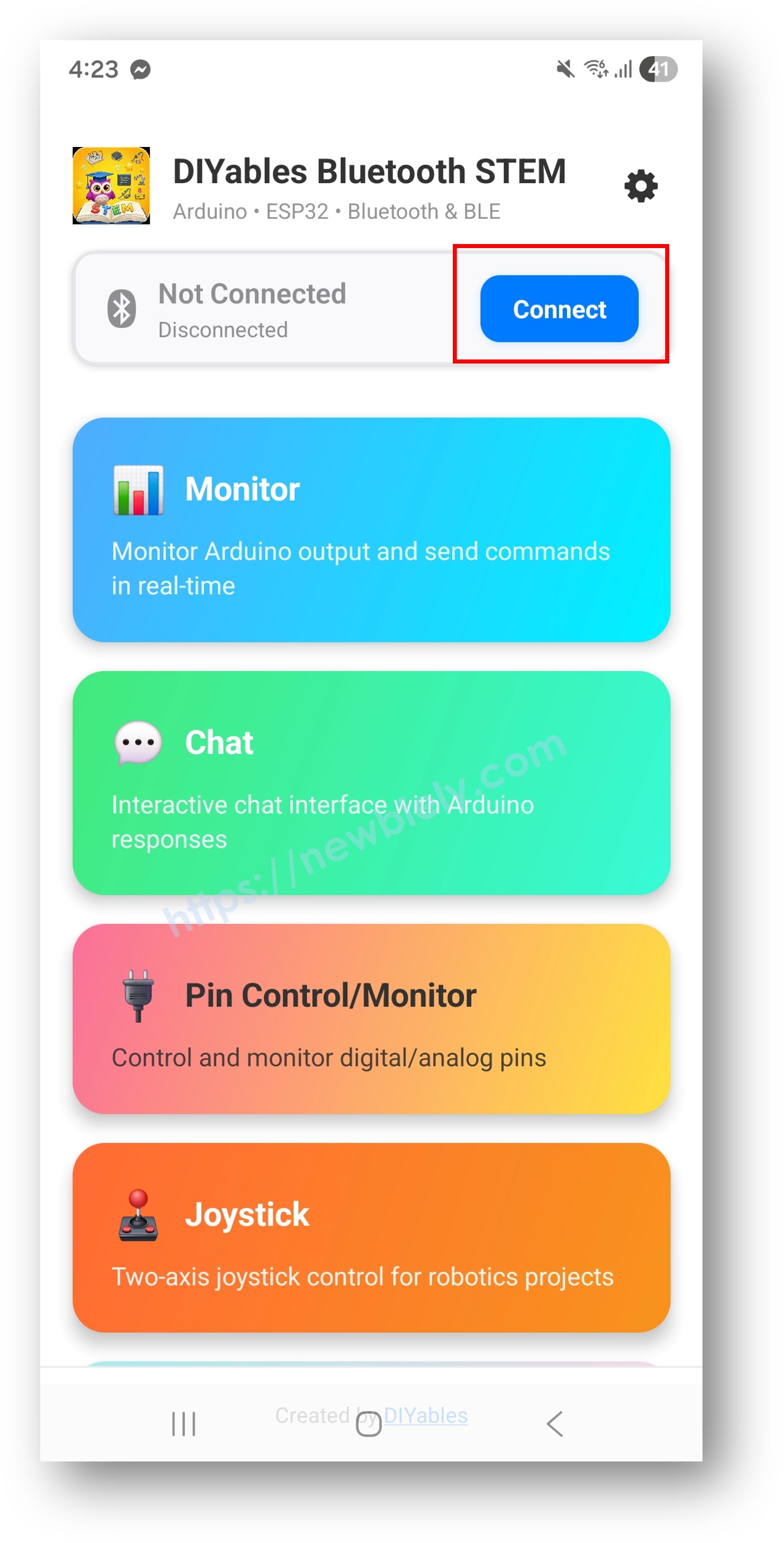
DIYables Bluetooth App - Home Screen with Scan Button
  • Find and tap your device in the scan results to connect:
    • For Classic Bluetooth: tap "ESP32_Joystick"
    • For BLE: tap "ESP32BLE_Joystick"
  • Once connected, the app automatically goes back to the home screen. Select the Joystick app from the app menu.
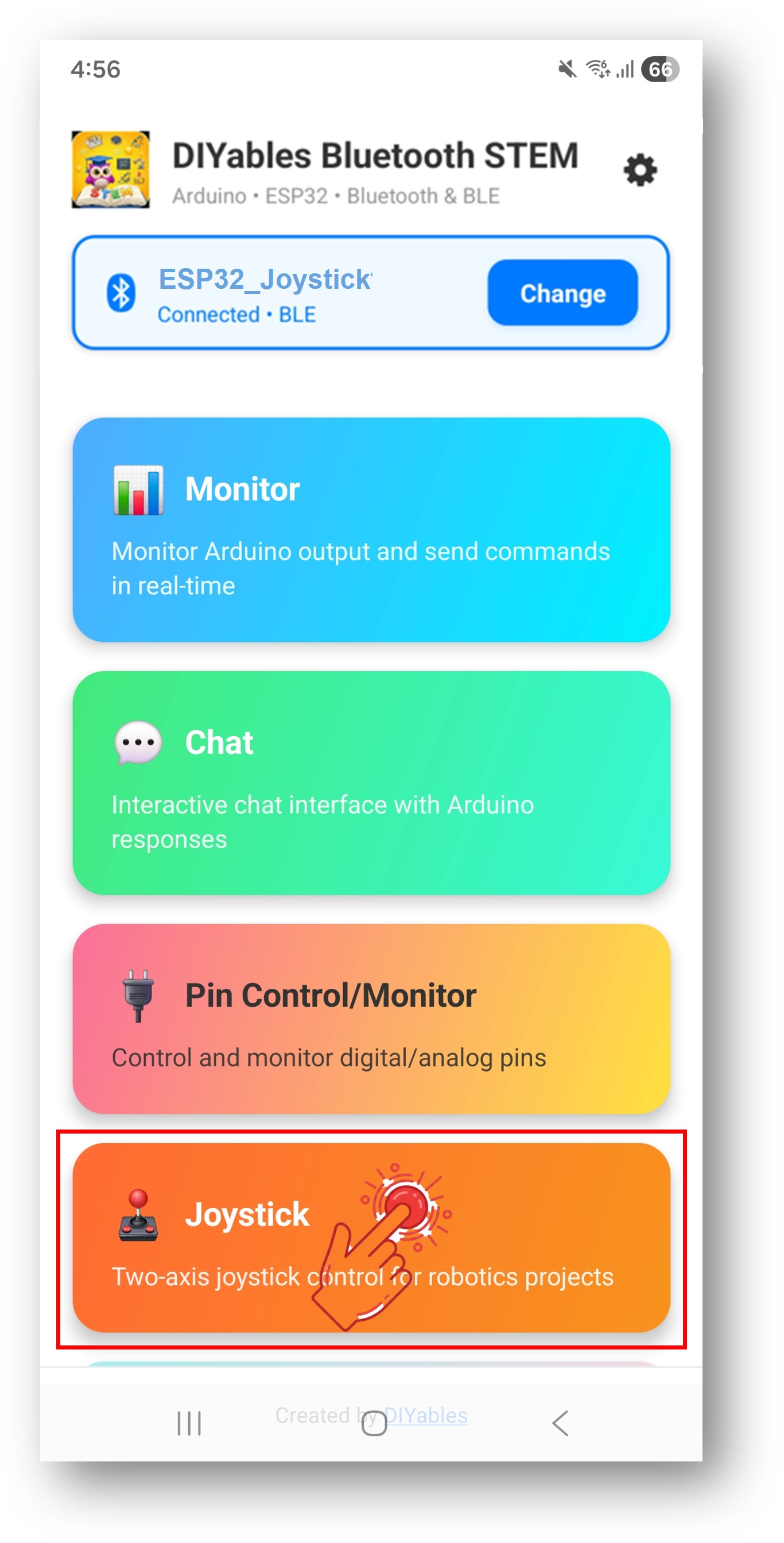
DIYables Bluetooth App - Home Screen with Joystick App

Note: You can tap the settings icon on the home screen to hide/show apps on the home screen. For more details, see the DIYables Bluetooth App User Manual.

  • Move the joystick in any direction to send X/Y coordinate values
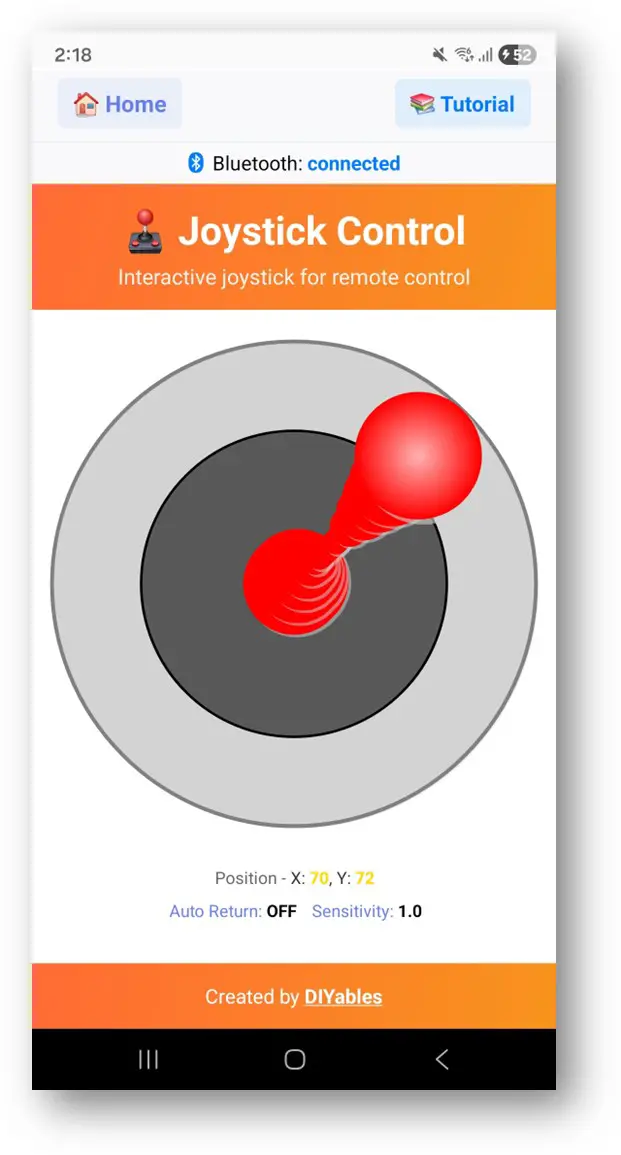
DIYables Bluetooth App - Joystick Screen

Now look back at the Serial Monitor on Arduino IDE. You will see:

COM6
Send
Bluetooth connected! Joystick - X: 50, Y: 0 Joystick - X: 75, Y: -30 Joystick - X: 0, Y: 100 Joystick - X: -60, Y: 45 Joystick - X: 0, Y: 0
Autoscroll Show timestamp
Clear output
9600 baud  
Newline  
  • Move the joystick in the app and watch the real-time X/Y values in the Serial Monitor

Creative Customization - Adapt the Code to Your Project

Configure Auto-Return and Sensitivity

Set joystick behavior with constructor parameters:

// Create Joystick app instance // Parameters: autoReturn (bool), sensitivity (float - minimum % change to trigger update) DIYables_BluetoothJoystick bluetoothJoystick(false, 5); // Or change at runtime: bluetoothJoystick.setAutoReturn(true); // Enable auto-return to center bluetoothJoystick.setSensitivity(10.0); // Only send updates when joystick moves >10% // Read current configuration: bool autoReturn = bluetoothJoystick.getAutoReturn(); float sensitivity = bluetoothJoystick.getSensitivity();

Handle Joystick Position Changes

Use the onJoystickValue() callback to receive X/Y coordinates:

bluetoothJoystick.onJoystickValue([](int x, int y) { // x ranges from -100 (left) to +100 (right) // y ranges from -100 (down) to +100 (up) Serial.print("X: "); Serial.print(x); Serial.print(", Y: "); Serial.println(y); // TODO: Add your control logic here });

Handle Configuration Request from App

When the app connects and opens the Joystick screen, it requests the joystick configuration from ESP32. You can use the onGetConfig() callback to send the current joystick values to the app at that moment:

bluetoothJoystick.onGetConfig([]() { // This is called when the app requests joystick configuration // Send current joystick values so the app displays them correctly bluetoothJoystick.send(currentJoystickX, currentJoystickY); Serial.println("App requested config - sent current values"); });

Send Values to App

You can send joystick coordinate values from ESP32 to the app:

// Send X/Y coordinate values to the app bluetoothJoystick.send(currentJoystickX, currentJoystickY); // Send a text message bluetoothJoystick.send("Joystick calibrated");

Handle Connection Events

You can detect when the app connects or disconnects from the ESP32:

// Called when the app connects to ESP32 bluetoothServer.setOnConnected([]() { Serial.println("Bluetooth connected!"); bluetoothJoystick.send(currentJoystickX, currentJoystickY); }); // Called when the app disconnects from ESP32 bluetoothServer.setOnDisconnected([]() { Serial.println("Bluetooth disconnected!"); // Stop motors when connection is lost stopAllMotors(); }); // Check connection status anywhere in your code if (bluetoothServer.isConnected()) { // Do something only when connected }

How to Use the Joystick

App Interface Controls

The joystick interface in the DIYables Bluetooth App provides:

  • Virtual Joystick Pad: Touch and drag to control position
  • X Value Display: Shows current horizontal position (-100 to +100)
  • Y Value Display: Shows current vertical position (-100 to +100)

Value Ranges

The joystick provides:

  • X Axis: -100 (full left) to 0 (center) to +100 (full right)
  • Y Axis: -100 (full down) to 0 (center) to +100 (full up)
  • Center Position: (0, 0) when joystick is at rest

Programming Examples

Basic Joystick Handler

void setup() { bluetoothJoystick.onJoystickValue([](int x, int y) { currentJoystickX = x; currentJoystickY = y; Serial.print("Joystick - X: "); Serial.print(x); Serial.print(", Y: "); Serial.println(y); }); }

Two-Wheel Robot Control

const int MOTOR_LEFT_PWM = 16; const int MOTOR_LEFT_DIR1 = 18; const int MOTOR_LEFT_DIR2 = 19; const int MOTOR_RIGHT_PWM = 17; const int MOTOR_RIGHT_DIR1 = 21; const int MOTOR_RIGHT_DIR2 = 22; void setup() { // Configure motor pins pinMode(MOTOR_LEFT_PWM, OUTPUT); pinMode(MOTOR_LEFT_DIR1, OUTPUT); pinMode(MOTOR_LEFT_DIR2, OUTPUT); pinMode(MOTOR_RIGHT_PWM, OUTPUT); pinMode(MOTOR_RIGHT_DIR1, OUTPUT); pinMode(MOTOR_RIGHT_DIR2, OUTPUT); bluetoothJoystick.onJoystickValue([](int x, int y) { // Differential drive: mix X (turn) and Y (speed) int leftSpeed = constrain(y + x, -100, 100); int rightSpeed = constrain(y - x, -100, 100); // Set left motor direction and speed if (leftSpeed >= 0) { digitalWrite(MOTOR_LEFT_DIR1, HIGH); digitalWrite(MOTOR_LEFT_DIR2, LOW); } else { digitalWrite(MOTOR_LEFT_DIR1, LOW); digitalWrite(MOTOR_LEFT_DIR2, HIGH); } analogWrite(MOTOR_LEFT_PWM, map(abs(leftSpeed), 0, 100, 0, 255)); // Set right motor direction and speed if (rightSpeed >= 0) { digitalWrite(MOTOR_RIGHT_DIR1, HIGH); digitalWrite(MOTOR_RIGHT_DIR2, LOW); } else { digitalWrite(MOTOR_RIGHT_DIR1, LOW); digitalWrite(MOTOR_RIGHT_DIR2, HIGH); } analogWrite(MOTOR_RIGHT_PWM, map(abs(rightSpeed), 0, 100, 0, 255)); Serial.print("Left: "); Serial.print(leftSpeed); Serial.print("%, Right: "); Serial.print(rightSpeed); Serial.println("%"); }); }

Pan-Tilt Servo Control

#include <ESP32Servo.h> Servo panServo; // Horizontal (X axis) Servo tiltServo; // Vertical (Y axis) const int PAN_PIN = 13; const int TILT_PIN = 14; void setup() { panServo.attach(PAN_PIN); tiltServo.attach(TILT_PIN); panServo.write(90); // Center position tiltServo.write(90); bluetoothJoystick.onJoystickValue([](int x, int y) { // Map joystick values (-100 to +100) to servo angles (0 to 180) int panAngle = map(x, -100, 100, 0, 180); int tiltAngle = map(y, -100, 100, 0, 180); panServo.write(panAngle); tiltServo.write(tiltAngle); Serial.print("Pan: "); Serial.print(panAngle); Serial.print("°, Tilt: "); Serial.print(tiltAngle); Serial.println("°"); }); }

LED Matrix Direction Indicator

// 4 directional LEDs const int LED_UP = 16; const int LED_DOWN = 17; const int LED_LEFT = 18; const int LED_RIGHT = 19; const int THRESHOLD = 30; // Minimum joystick value to activate LED void setup() { pinMode(LED_UP, OUTPUT); pinMode(LED_DOWN, OUTPUT); pinMode(LED_LEFT, OUTPUT); pinMode(LED_RIGHT, OUTPUT); bluetoothJoystick.onJoystickValue([](int x, int y) { // Light up LEDs based on joystick direction digitalWrite(LED_UP, y > THRESHOLD ? HIGH : LOW); digitalWrite(LED_DOWN, y < -THRESHOLD ? HIGH : LOW); digitalWrite(LED_RIGHT, x > THRESHOLD ? HIGH : LOW); digitalWrite(LED_LEFT, x < -THRESHOLD ? HIGH : LOW); // Show direction in Serial String direction = ""; if (y > THRESHOLD) direction += "UP "; if (y < -THRESHOLD) direction += "DOWN "; if (x > THRESHOLD) direction += "RIGHT "; if (x < -THRESHOLD) direction += "LEFT "; if (direction == "") direction = "CENTER"; Serial.println("Direction: " + direction); }); }

Advanced Programming Techniques

Dead Zone Filter

const int DEAD_ZONE = 15; // Ignore joystick values within ±15 bluetoothJoystick.onJoystickValue([](int x, int y) { // Apply dead zone filter int filteredX = (abs(x) > DEAD_ZONE) ? x : 0; int filteredY = (abs(y) > DEAD_ZONE) ? y : 0; // Use filtered values for control controlMotors(filteredX, filteredY); });

Speed Ramping

int targetX = 0, targetY = 0; int currentX = 0, currentY = 0; const int RAMP_RATE = 5; // Max change per update void setup() { bluetoothJoystick.onJoystickValue([](int x, int y) { targetX = x; targetY = y; }); } void loop() { bluetoothServer.loop(); // Gradually ramp to target values if (currentX < targetX) currentX = min(currentX + RAMP_RATE, targetX); else if (currentX > targetX) currentX = max(currentX - RAMP_RATE, targetX); if (currentY < targetY) currentY = min(currentY + RAMP_RATE, targetY); else if (currentY > targetY) currentY = max(currentY - RAMP_RATE, targetY); controlMotors(currentX, currentY); delay(20); }

Magnitude and Angle Calculation

bluetoothJoystick.onJoystickValue([](int x, int y) { // Calculate magnitude (distance from center, 0-100) float magnitude = sqrt(x * x + y * y); magnitude = constrain(magnitude, 0, 100); // Calculate angle in degrees (0° = right, 90° = up) float angle = atan2(y, x) * 180.0 / PI; Serial.print("Magnitude: "); Serial.print(magnitude, 1); Serial.print(", Angle: "); Serial.print(angle, 1); Serial.println("°"); // Use magnitude for speed and angle for direction int speed = map((int)magnitude, 0, 100, 0, 255); // Apply to your hardware... });

Hardware Integration Examples

Mecanum Wheel Robot

// Mecanum wheel robot requires 4 motors const int MOTOR_FL = 16; // Front-Left const int MOTOR_FR = 17; // Front-Right const int MOTOR_BL = 18; // Back-Left const int MOTOR_BR = 19; // Back-Right void setupMecanumRobot() { bluetoothJoystick.onJoystickValue([](int x, int y) { // Mecanum wheel kinematics int fl = constrain(y + x, -100, 100); int fr = constrain(y - x, -100, 100); int bl = constrain(y - x, -100, 100); int br = constrain(y + x, -100, 100); setMotor(MOTOR_FL, fl); setMotor(MOTOR_FR, fr); setMotor(MOTOR_BL, bl); setMotor(MOTOR_BR, br); }); } void setMotor(int pin, int speed) { // Map -100..100 to PWM with direction analogWrite(pin, map(abs(speed), 0, 100, 0, 255)); }

Stepper Motor Position Control

#include <AccelStepper.h> AccelStepper stepperX(AccelStepper::DRIVER, 16, 17); AccelStepper stepperY(AccelStepper::DRIVER, 18, 19); void setup() { stepperX.setMaxSpeed(1000); stepperX.setAcceleration(500); stepperY.setMaxSpeed(1000); stepperY.setAcceleration(500); bluetoothJoystick.onJoystickValue([](int x, int y) { // Map joystick to stepper speed (-1000 to +1000 steps/sec) int speedX = map(x, -100, 100, -1000, 1000); int speedY = map(y, -100, 100, -1000, 1000); stepperX.setSpeed(speedX); stepperY.setSpeed(speedY); }); } void loop() { bluetoothServer.loop(); stepperX.runSpeed(); stepperY.runSpeed(); }

BLE vs Classic Bluetooth - Which to Choose?

FeatureBLE (Esp32BLE_Joystick)Classic Bluetooth (Esp32Bluetooth_Joystick)
iOS Support? Yes? No
Android Support? Yes? Yes
Power ConsumptionLowHigher
Range~30-100m~10-100m
Data RateLowerHigher
Pairing RequiredNo (auto-connect)Yes (manual pairing)
Best ForBattery-powered, cross-platformHigh throughput, Android-only

Troubleshooting

Common Issues

1. Cannot find the device in the app

  • Make sure the ESP32 is powered on and the sketch is uploaded
  • For BLE: Ensure your phone's Bluetooth and Location are enabled
  • For Classic Bluetooth: Pair the device first in phone's Bluetooth settings
  • Check that the correct partition scheme is selected (Huge APP)

2. Joystick not responding

  • Check Bluetooth connection status in the app
  • Verify connection in Serial Monitor
  • Try disconnecting and reconnecting

3. Joystick values seem erratic

  • Increase sensitivity value to filter small movements: bluetoothJoystick.setSensitivity(10.0)
  • Apply a dead zone filter in your callback
  • Check for interference from other Bluetooth devices

4. Connection drops frequently

  • Move closer to the ESP32 (reduce distance)
  • For BLE: Check for interference from other BLE devices
  • For Classic Bluetooth: Ensure stable power supply to ESP32
  • Check Serial Monitor for disconnect/reconnect messages

5. Motors don't stop when joystick is released

  • Ensure auto-return is enabled: bluetoothJoystick.setAutoReturn(true)
  • Add a dead zone check in your motor control code
  • Add a safety stop in setOnDisconnected() callback

6. Sketch too large / not enough space

  • In Arduino IDE, go to Tools > Partition Scheme and select "Huge APP (3MB No OTA/1MB SPIFFS)" or "No OTA (Large APP)"
  • The default partition scheme only provides ~1.2MB for app code, which is not enough for Bluetooth libraries
  • This setting gives ~3MB by sacrificing the OTA (over-the-air update) partition

Debug Tips

Add comprehensive debugging:

void debugJoystickValues(int x, int y) { float magnitude = sqrt(x * x + y * y); float angle = atan2(y, x) * 180.0 / PI; Serial.println("=== Joystick Debug ==="); Serial.println("X: " + String(x) + ", Y: " + String(y)); Serial.println("Magnitude: " + String(magnitude, 1)); Serial.println("Angle: " + String(angle, 1) + "°"); Serial.println("======================"); }

Project Ideas

Robotics Projects

  • Bluetooth-controlled differential drive robot
  • Mecanum or omnidirectional wheel robot
  • Robotic arm joint control
  • Drone ground station controller

Camera Projects

  • Pan-tilt camera mount control
  • Motorized camera slider positioning
  • Surveillance camera remote control

Game Projects

  • Bluetooth game controller for ESP32 games
  • Maze navigation game
  • LED matrix joystick games (Snake, Pong)

Industrial Projects

  • CNC jog controller
  • Motorized stage or platform positioning
  • Crane or winch directional control

Integration with Other Bluetooth Apps

Combine with Bluetooth Slider

Use joystick for direction and sliders for speed limits:

int maxSpeed = 100; bluetoothSlider.onSliderValue([](int slider1, int slider2) { maxSpeed = slider1; // Slider controls max speed }); bluetoothJoystick.onJoystickValue([](int x, int y) { // Scale joystick by slider-controlled speed limit int scaledX = map(x, -100, 100, -maxSpeed, maxSpeed); int scaledY = map(y, -100, 100, -maxSpeed, maxSpeed); controlRobot(scaledX, scaledY); });

Combine with Bluetooth Monitor

Use joystick for control and monitor for telemetry:

bluetoothJoystick.onJoystickValue([](int x, int y) { controlMotors(x, y); // Send telemetry to monitor bluetoothMonitor.send("X=" + String(x) + " Y=" + String(y) + " Speed=" + String(sqrt(x*x + y*y), 0)); });

Next Steps

After mastering the Bluetooth Joystick example, try:

  1. Bluetooth Slider - For precise analog value control
  2. Bluetooth Digital Pins - For discrete on/off control
  3. Bluetooth Monitor - For debugging joystick values
  4. Multiple Bluetooth Apps - Combining joystick with sliders and other controls

Support

For additional help:

※ OUR MESSAGES