
ESP32 - DIYables Bluetooth App Temperature

Overview

The Bluetooth Temperature example provides a dedicated temperature gauge display accessible through the DIYables Bluetooth STEM app. Designed for ESP32 boards with support for both BLE (Bluetooth Low Energy) and Classic Bluetooth connections. Send temperature readings with configurable minimum/maximum range and unit labels — perfect for thermometers, weather stations, HVAC monitoring, and any temperature sensing application.

This example supports two Bluetooth modes:

  • ESP32 BLE (Bluetooth Low Energy): Works on both Android and iOS
  • ESP32 Classic Bluetooth: Works on Android only. iOS does not support Classic Bluetooth. Use BLE if you need iOS support.
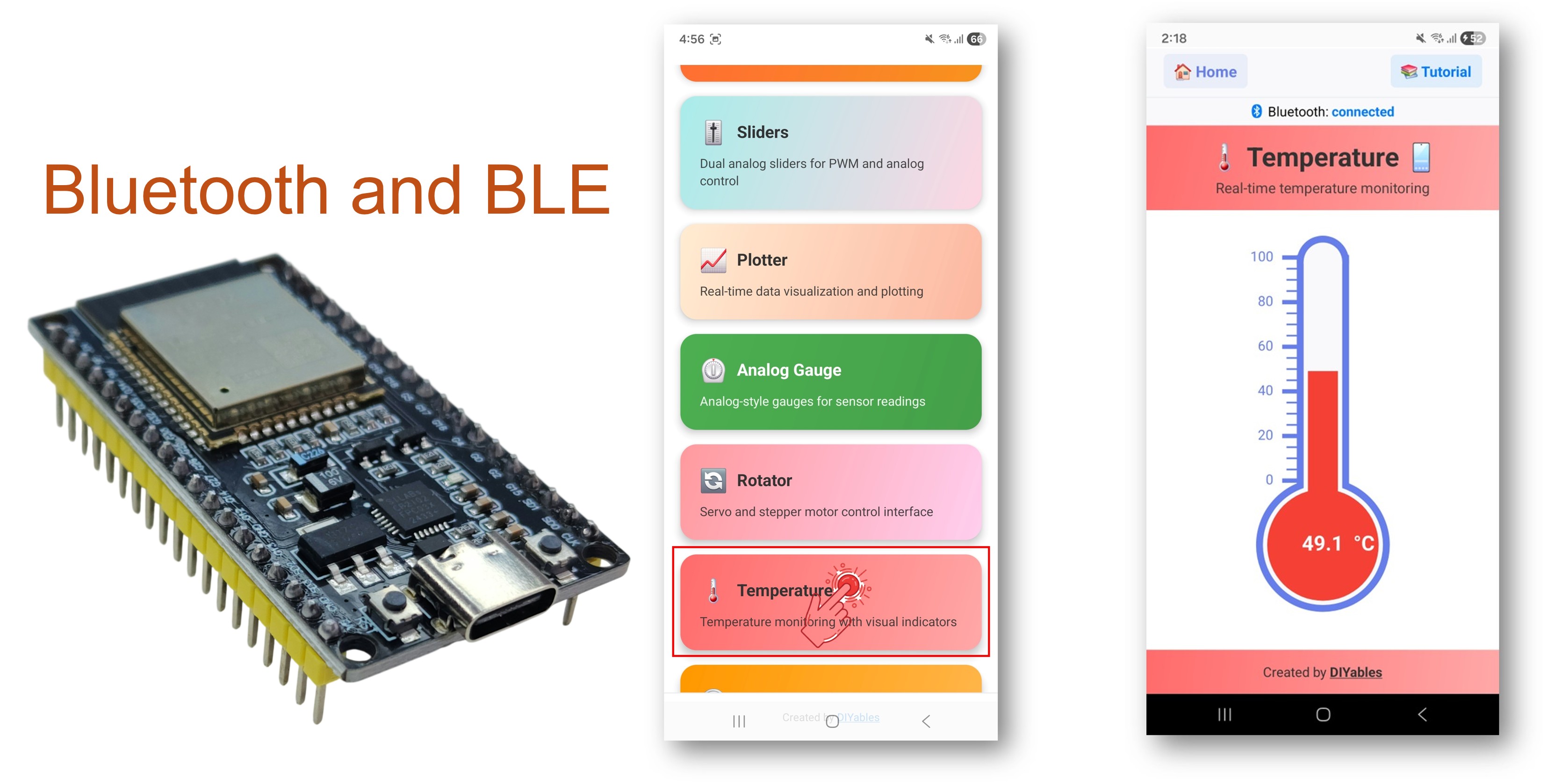
ESP32 Bluetooth Temperature Example - Temperature Gauge Display Tutorial

Features

  • Temperature Gauge: Visual thermometer-style display
  • Configurable Range: Set minimum and maximum temperature values
  • Custom Units: Display °C, °F, K, or any custom unit string
  • Real-Time Updates: Send live temperature readings
  • Request Callback: App can request current temperature on demand
  • BLE & Classic Bluetooth: Choose the Bluetooth mode that suits your project
  • Cross-Platform: BLE mode works on both Android and iOS; Classic Bluetooth works on Android
  • Low Power Option: BLE mode consumes less power than Classic Bluetooth

Hardware Used In This Tutorial

1×ESP-WROOM-32 Dev Module
1×Alternatively, ESP32 Uno-form board
1×Alternatively, ESP32 S3 Uno-form board
1×USB Cable Type-A to Type-C (for USB-A PC)
1×USB Cable Type-C to Type-C (for USB-C PC)
1×Breadboard
1×Jumper Wires
1×Recommended: Screw Terminal Expansion Board for ESP32
1×Recommended: Breakout Expansion Board for ESP32
1×Recommended: Power Splitter for ESP32

Or you can buy the following kits:

1×DIYables ESP32 Starter Kit (ESP32 included)
1×DIYables Sensor Kit (18 sensors/displays)
Disclosure: Some of the links in this section are Amazon affiliate links, meaning we may earn a commission at no additional cost to you if you make a purchase through them. Additionally, some links direct you to products from our own brand, DIYables .

ESP32 Code

Quick Instructions

Follow these instructions step by step:

  • If this is your first time using the ESP32, refer to the tutorial on setting up the environment for ESP32 in the Arduino IDE.
  • Connect the ESP32 board to your computer using a USB cable.
  • Launch the Arduino IDE on your computer.
  • Select the appropriate ESP32 board and COM port.
  • Navigate to the Libraries icon on the left bar of the Arduino IDE.
  • Search "DIYables Bluetooth", then find the DIYables Bluetooth library by DIYables
  • Click Install button to install the library.
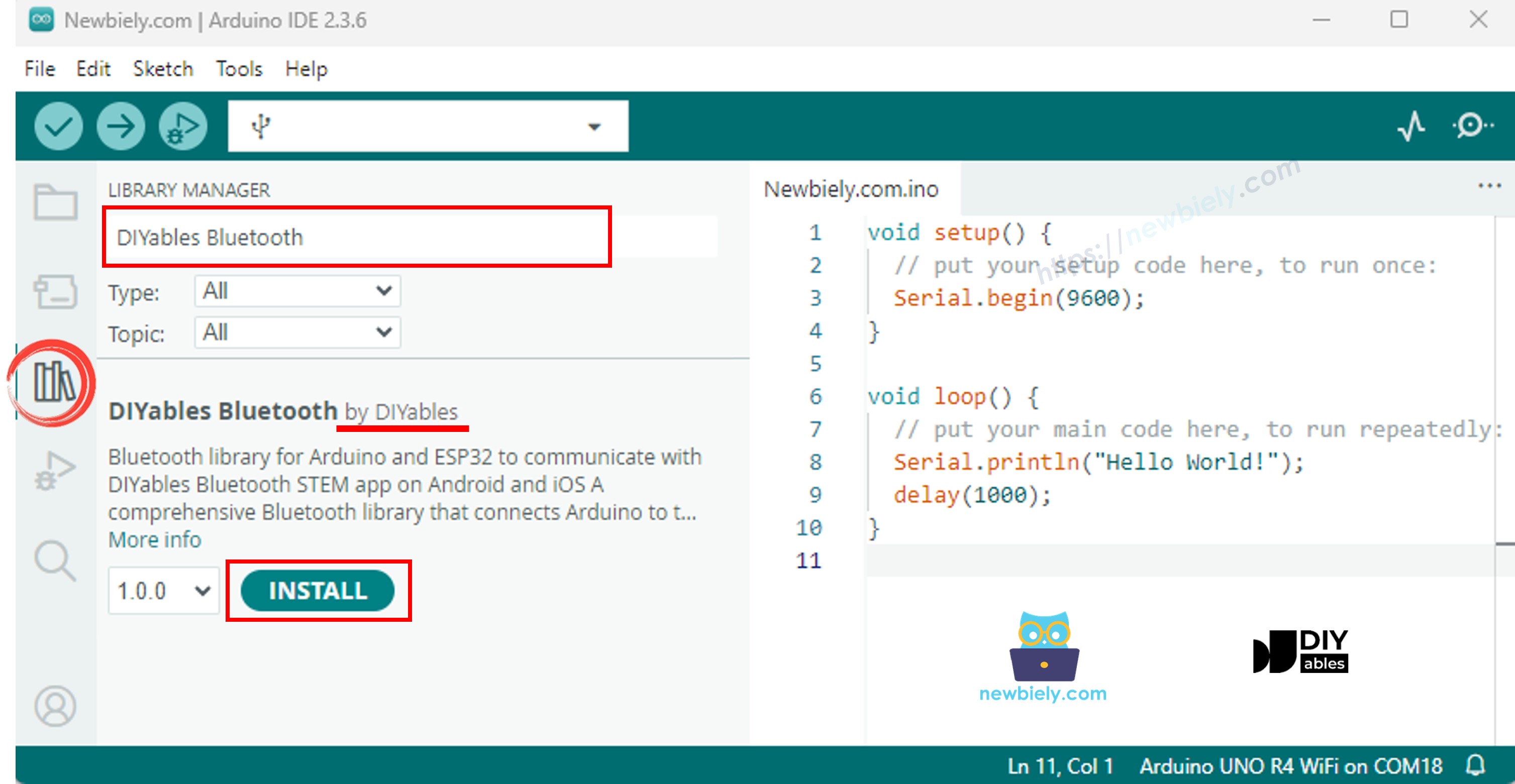
ESP32 DIYables Bluetooth library
  • You will be asked for installing some other library dependencies
  • Click Install All button to install all library dependencies.
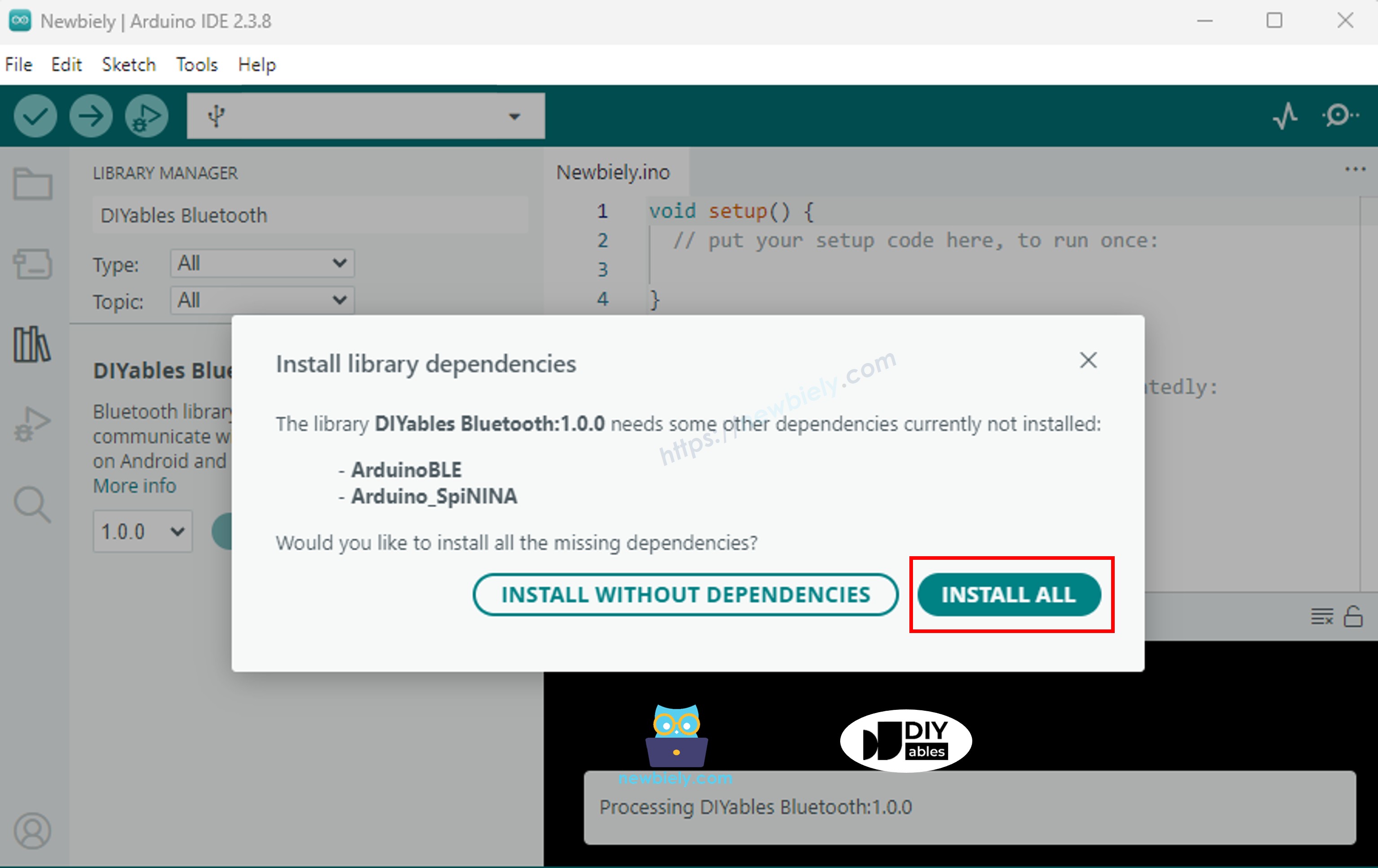
ESP32 DIYables Bluetooth dependency

Choose one of the two Bluetooth modes below depending on your needs:

ESP32 Classic Bluetooth Code (works with app on Android only)

Note: Classic Bluetooth is NOT supported on iOS. If you need iOS support, use the BLE code below.

  • On Arduino IDE, Go to File Examples DIYables Bluetooth Esp32Bluetooth_Temperature example, or copy the above code and paste it to the editor of Arduino IDE
/* * DIYables Bluetooth Library - ESP32 Classic Bluetooth Temperature Example * Works with DIYables Bluetooth STEM app on Android * Note: Classic Bluetooth is NOT supported on iOS. Use BLE examples for iOS support. * * This example demonstrates the Bluetooth Temperature feature: * - Display temperature sensor readings * - Configurable temperature range and unit * - Real-time temperature updates * * Compatible Boards: * - ESP32 (all variants with Classic Bluetooth) * - ESP32-WROOM-32 * - ESP32-DevKitC * - ESP32-WROVER * * Note: Select "Huge APP (3MB No OTA/1MB SPIFFS)" partition scheme * in Arduino IDE: Tools > Partition Scheme * * Optional: Temperature sensor (DHT22, DS18B20, or analog thermistor) * * Setup: * 1. Upload the sketch to your ESP32 * 2. Open Serial Monitor (115200 baud) to see connection status * 3. Use DIYables Bluetooth App to connect and view temperature * * Tutorial: https://diyables.io/bluetooth-app * Author: DIYables */ #include <DIYables_BluetoothServer.h> #include <DIYables_BluetoothTemperature.h> #include <platforms/DIYables_Esp32Bluetooth.h> // Create Bluetooth instances DIYables_Esp32Bluetooth bluetooth("ESP32_Temp"); DIYables_BluetoothServer bluetoothServer(bluetooth); // Create Temperature app instance (min=-10°C, max=50°C, unit="°C") DIYables_BluetoothTemperature bluetoothTemperature(-10.0, 50.0, "°C"); // Variables for temperature simulation float currentTemperature = 25.0; unsigned long lastTempUpdate = 0; const unsigned long TEMP_UPDATE_INTERVAL = 2000; // Update every 2 seconds // Simulated temperature sensor reading float readTemperature() { // TODO: Replace with actual sensor reading // Examples: // - DHT22: dht.readTemperature() // - DS18B20: sensors.getTempCByIndex(0) // - Analog thermistor: analogToTemperature(analogRead(34)) // - ESP32 internal temp: temperatureRead() (approximate) // Simulate temperature changes static float offset = 0; offset += random(-10, 11) / 10.0; // Random walk if (offset > 5.0) offset = 5.0; if (offset < -5.0) offset = -5.0; return 25.0 + offset; // Base temperature 25°C with variation } void setup() { Serial.begin(115200); delay(1000); Serial.println("DIYables Bluetooth - ESP32 Temperature Example"); // TODO: Initialize your temperature sensor here // Examples: // dht.begin(); // sensors.begin(); // Initialize Bluetooth server with platform-specific implementation bluetoothServer.begin(); // Add temperature app to server bluetoothServer.addApp(&bluetoothTemperature); // Set up connection event callbacks bluetoothServer.setOnConnected([]() { Serial.println("Bluetooth connected!"); // Send initial temperature reading float temp = readTemperature(); bluetoothTemperature.send(temp); Serial.print("Initial temperature sent: "); Serial.print(temp); Serial.println("°C"); }); bluetoothServer.setOnDisconnected([]() { Serial.println("Bluetooth disconnected!"); }); // Optional: Handle requests for temperature value bluetoothTemperature.onTemperatureRequest([]() { float temp = readTemperature(); bluetoothTemperature.send(temp); Serial.print("Temperature requested - Sent: "); Serial.print(temp); Serial.println("°C"); }); // You can change temperature configuration at runtime: // bluetoothTemperature.setRange(-40.0, 125.0); // Wide range for industrial sensors // bluetoothTemperature.setUnit("°F"); // Change to Fahrenheit Serial.println("Waiting for Bluetooth connection..."); } void loop() { // Handle Bluetooth server communications bluetoothServer.loop(); // Send temperature updates periodically (only when connected) if (bluetooth.isConnected() && millis() - lastTempUpdate >= TEMP_UPDATE_INTERVAL) { lastTempUpdate = millis(); // Read temperature from sensor currentTemperature = readTemperature(); // Send to Bluetooth app bluetoothTemperature.send(currentTemperature); // Print to Serial Monitor Serial.print("Temperature: "); Serial.print(currentTemperature); Serial.println("°C"); } delay(10); }
  • Click Upload button on Arduino IDE to upload code to ESP32
  • Open the Serial Monitor
  • Check out the result on Serial Monitor. It looks like the below:
COM6
Send
DIYables Bluetooth - ESP32 Temperature Example Waiting for Bluetooth connection...
Autoscroll Show timestamp
Clear output
9600 baud  
Newline  

ESP32 BLE Code (works with app on both Android and iOS)

  • On Arduino IDE, Go to File Examples DIYables Bluetooth Esp32BLE_Temperature example, or copy the above code and paste it to the editor of Arduino IDE
/* * DIYables Bluetooth Library - ESP32 BLE Temperature Example * Works with DIYables Bluetooth STEM app on Android and iOS * * This example demonstrates the Bluetooth Temperature feature: * - Display temperature sensor readings * - Configurable temperature range and unit * - Real-time temperature updates * * Compatible Boards: * - ESP32-WROOM-32 * - ESP32-DevKitC * - ESP32-WROVER * - ESP32-S3 * - ESP32-C3 * - Any ESP32 board supporting BLE * * Note: Select "Huge APP (3MB No OTA/1MB SPIFFS)" partition scheme * in Arduino IDE: Tools > Partition Scheme * * Optional: Temperature sensor (DHT22, DS18B20, or analog thermistor) * * Setup: * 1. Upload the sketch to your ESP32 * 2. Open Serial Monitor (115200 baud) to see connection status * 3. Use DIYables Bluetooth App to connect and view temperature * * Tutorial: https://diyables.io/bluetooth-app * Author: DIYables */ #include <DIYables_BluetoothServer.h> #include <DIYables_BluetoothTemperature.h> #include <platforms/DIYables_Esp32BLE.h> // BLE Configuration const char* DEVICE_NAME = "ESP32BLE_Temp"; const char* SERVICE_UUID = "19B10000-E8F2-537E-4F6C-D104768A1214"; const char* TX_UUID = "19B10001-E8F2-537E-4F6C-D104768A1214"; const char* RX_UUID = "19B10002-E8F2-537E-4F6C-D104768A1214"; // Create Bluetooth instances DIYables_Esp32BLE bluetooth(DEVICE_NAME, SERVICE_UUID, TX_UUID, RX_UUID); DIYables_BluetoothServer bluetoothServer(bluetooth); // Create Temperature app instance (min=-10°C, max=50°C, unit="°C") DIYables_BluetoothTemperature bluetoothTemperature(-10.0, 50.0, "°C"); // Variables for temperature simulation float currentTemperature = 25.0; unsigned long lastTempUpdate = 0; const unsigned long TEMP_UPDATE_INTERVAL = 2000; // Simulated temperature sensor reading float readTemperature() { // TODO: Replace with actual sensor reading static float offset = 0; offset += random(-10, 11) / 10.0; if (offset > 5.0) offset = 5.0; if (offset < -5.0) offset = -5.0; return 25.0 + offset; } void setup() { Serial.begin(115200); delay(1000); Serial.println("DIYables Bluetooth - ESP32 BLE Temperature Example"); // Initialize Bluetooth server with platform-specific implementation bluetoothServer.begin(); // Add temperature app to server bluetoothServer.addApp(&bluetoothTemperature); // Set up connection event callbacks bluetoothServer.setOnConnected([]() { Serial.println("Bluetooth connected!"); float temp = readTemperature(); bluetoothTemperature.send(temp); Serial.print("Initial temperature sent: "); Serial.print(temp); Serial.println("°C"); }); bluetoothServer.setOnDisconnected([]() { Serial.println("Bluetooth disconnected!"); }); bluetoothTemperature.onTemperatureRequest([]() { float temp = readTemperature(); bluetoothTemperature.send(temp); Serial.print("Temperature requested - Sent: "); Serial.print(temp); Serial.println("°C"); }); Serial.println("Waiting for Bluetooth connection..."); } void loop() { bluetoothServer.loop(); if (bluetooth.isConnected() && millis() - lastTempUpdate >= TEMP_UPDATE_INTERVAL) { lastTempUpdate = millis(); currentTemperature = readTemperature(); bluetoothTemperature.send(currentTemperature); Serial.print("Temperature: "); Serial.print(currentTemperature); Serial.println("°C"); } delay(10); }
  • Click Upload button on Arduino IDE to upload code to ESP32
  • Open the Serial Monitor
  • Check out the result on Serial Monitor. It looks like the below:
COM6
Send
DIYables Bluetooth - ESP32 BLE Temperature Example Waiting for Bluetooth connection...
Autoscroll Show timestamp
Clear output
9600 baud  
Newline  

Mobile App

  • Install the DIYables Bluetooth App on your smartphone: Android | iOS
  • If you are using the ESP32 Classic Bluetooth code, you need to pair the ESP32 with your Android phone before opening the app:
    • Go to your phone's Settings > Bluetooth
    • Make sure Bluetooth is turned on
    • Your phone will scan for available devices
    • Find and tap "ESP32_Temp" in the list of available devices
    • Confirm the pairing request (no PIN required)
    • Wait until it shows "Paired" under the device name
  • If you are using the ESP32 BLE code, no pairing is needed. Just proceed to the next step.
  • Open the DIYables Bluetooth App
  • When opening the app for the first time, it will ask for permissions. Please grant the following:
    • Nearby Devices permission (Android 12+) / Bluetooth permission (iOS) - required to scan and connect to Bluetooth devices
    • Location permission (Android 11 and below only) - required by older Android versions to scan for BLE devices
  • Make sure Bluetooth is turned on on your phone
  • On the home screen, tap the Connect button. The app will scan for both BLE and Classic Bluetooth devices.
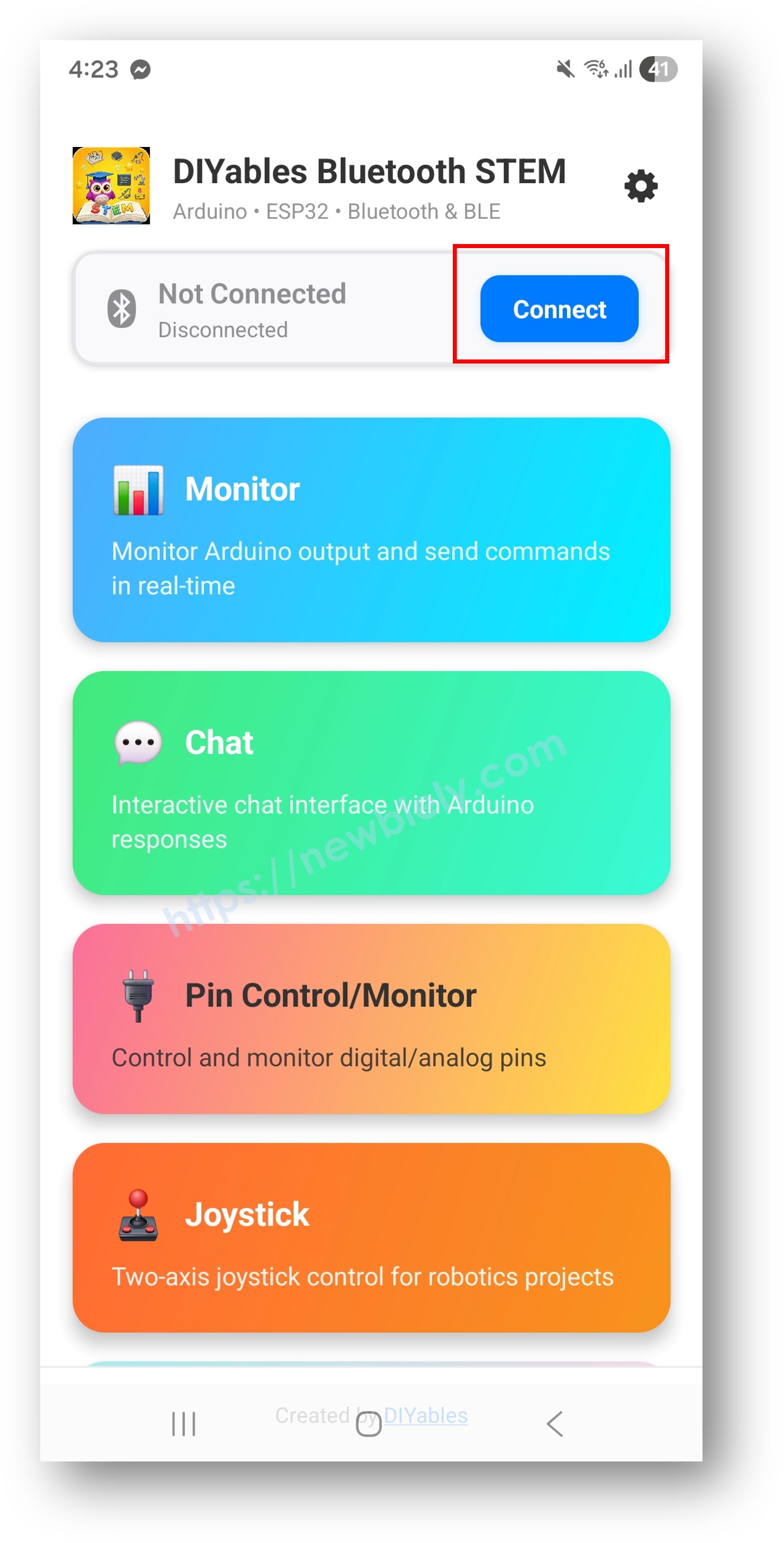
DIYables Bluetooth App - Home Screen with Scan Button
  • Find and tap your device in the scan results to connect:
    • For Classic Bluetooth: tap "ESP32_Temp"
    • For BLE: tap "ESP32BLE_Temp"
  • Once connected, the app automatically goes back to the home screen. Select the Temperature app from the app menu.
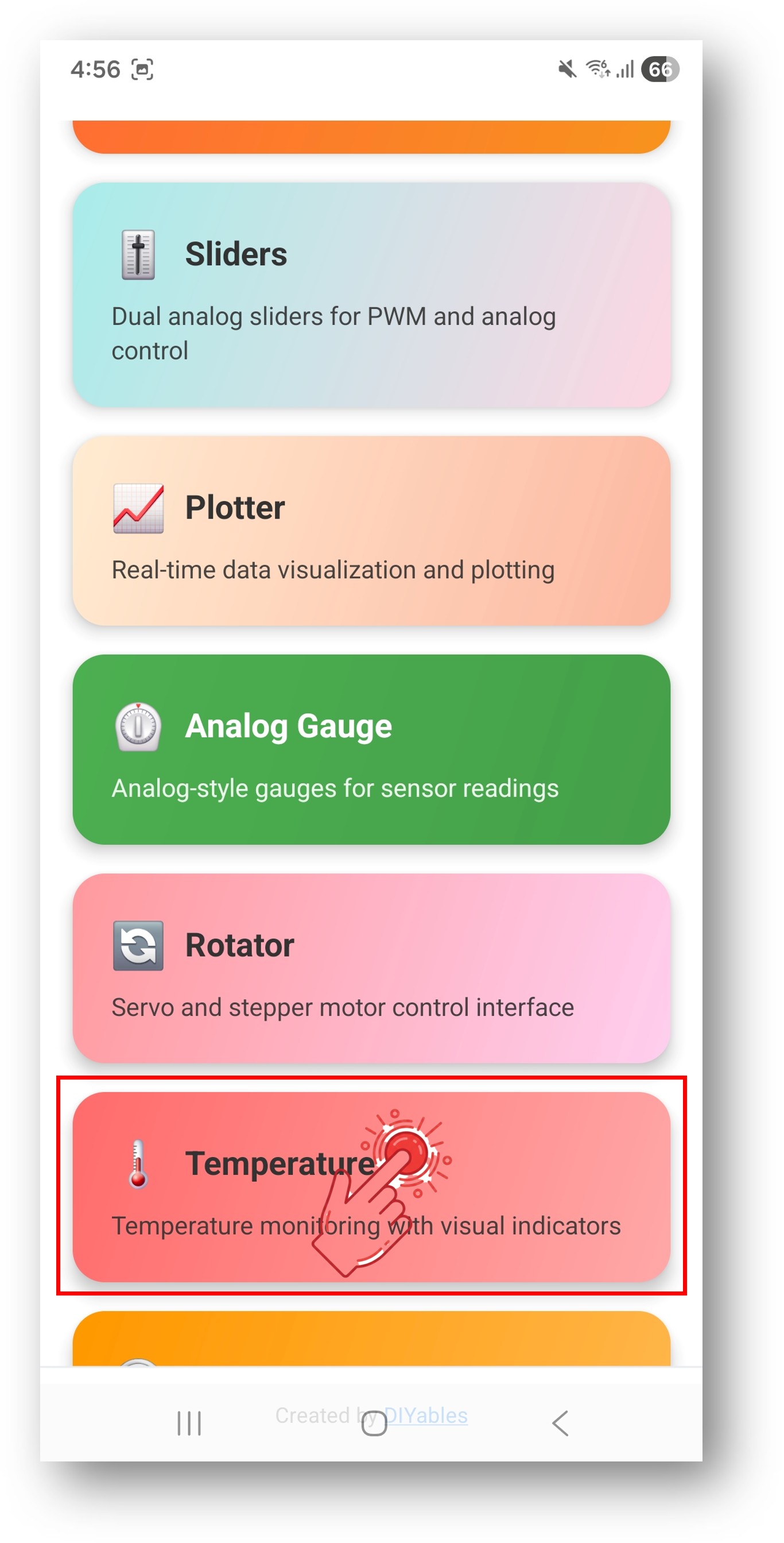
DIYables Bluetooth App - Home Screen with Temperature App

Note: You can tap the settings icon on the home screen to hide/show apps on the home screen. For more details, see the DIYables Bluetooth App User Manual.

  • The temperature gauge will display the current temperature reading
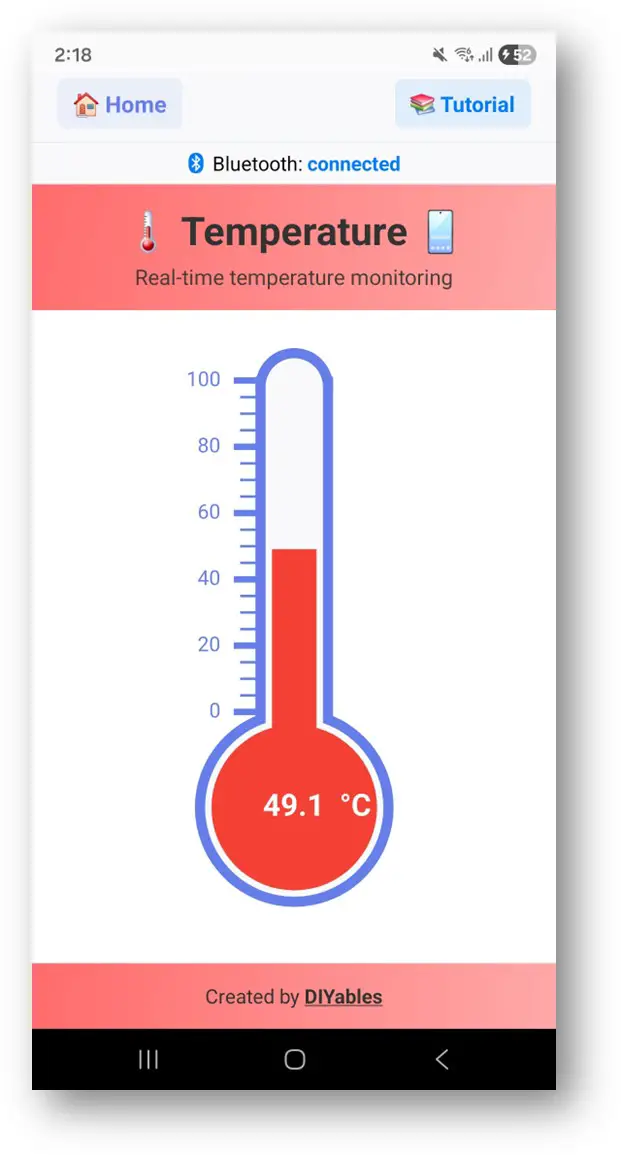
DIYables Bluetooth App - Temperature Gauge Screen

Now look back at the Serial Monitor on Arduino IDE. You will see:

COM6
Send
Bluetooth connected! Temperature: 24.5 °C Temperature: 24.8 °C Temperature: 25.1 °C Temperature: 24.9 °C
Autoscroll Show timestamp
Clear output
9600 baud  
Newline  
  • Watch the temperature gauge update in real time in the app

Creative Customization - Adapt the Code to Your Project

Configure Temperature Range and Unit

Set the display range and unit:

// Constructor: DIYables_BluetoothTemperature(min, max, unit) DIYables_BluetoothTemperature bluetoothTemperature(-10.0, 50.0, "°C"); // Change range at runtime bluetoothTemperature.setRange(-20.0, 60.0); // Change unit bluetoothTemperature.setUnit("°F"); // Read current configuration float minTemp = bluetoothTemperature.getMin(); // Returns -10.0 float maxTemp = bluetoothTemperature.getMax(); // Returns 50.0 String unit = bluetoothTemperature.getUnit(); // Returns "°C"

Send Temperature Value

// Send current temperature reading float temperature = 25.3; bluetoothTemperature.send(temperature); // Send text message bluetoothTemperature.send("Sensor error");

Handle Temperature Requests from App

bluetoothTemperature.onTemperatureRequest([]() { float temp = readTemperature(); bluetoothTemperature.send(temp); Serial.println("App requested temperature: " + String(temp)); });

Handle Connection Events

bluetoothServer.setOnConnected([]() { Serial.println("Bluetooth connected!"); // Send current temperature immediately bluetoothTemperature.send(currentTemperature); }); bluetoothServer.setOnDisconnected([]() { Serial.println("Bluetooth disconnected!"); });

How to Use the Temperature Display

App Interface

The temperature interface in the DIYables Bluetooth App shows:

  • Temperature Gauge: Visual thermometer showing current reading
  • Numeric Display: Shows exact temperature value
  • Unit Label: Displays the configured unit string
  • Range Indicators: Shows min and max of the configured range

Temperature Units

Common configurations:

  • Celsius: DIYables_BluetoothTemperature(-10.0, 50.0, "°C")
  • Fahrenheit: DIYables_BluetoothTemperature(14.0, 122.0, "°F")
  • Kelvin: DIYables_BluetoothTemperature(263.0, 323.0, "K")

Programming Examples

DHT22 Sensor Reading

#include <DHT.h> #define DHT_PIN 4 #define DHT_TYPE DHT22 DHT dht(DHT_PIN, DHT_TYPE); void setup() { Serial.begin(115200); dht.begin(); // ... Bluetooth setup ... bluetoothTemperature.onTemperatureRequest([]() { float temp = dht.readTemperature(); if (!isnan(temp)) { bluetoothTemperature.send(temp); } }); } void loop() { bluetoothServer.loop(); static unsigned long lastUpdate = 0; if (millis() - lastUpdate >= 2000) { lastUpdate = millis(); float temp = dht.readTemperature(); if (!isnan(temp)) { bluetoothTemperature.send(temp); Serial.println("Temperature: " + String(temp, 1) + " °C"); } } delay(10); }

DS18B20 One-Wire Sensor

#include <OneWire.h> #include <DallasTemperature.h> #define ONE_WIRE_PIN 4 OneWire oneWire(ONE_WIRE_PIN); DallasTemperature sensors(&oneWire); void setup() { Serial.begin(115200); sensors.begin(); // ... Bluetooth setup with range matching sensor capability ... // DS18B20 range: -55°C to +125°C bluetoothTemperature.onTemperatureRequest([]() { sensors.requestTemperatures(); float temp = sensors.getTempCByIndex(0); if (temp != DEVICE_DISCONNECTED_C) { bluetoothTemperature.send(temp); } }); } void loop() { bluetoothServer.loop(); static unsigned long lastUpdate = 0; if (millis() - lastUpdate >= 1000) { lastUpdate = millis(); sensors.requestTemperatures(); float temp = sensors.getTempCByIndex(0); if (temp != DEVICE_DISCONNECTED_C) { bluetoothTemperature.send(temp); Serial.println("Temperature: " + String(temp, 1) + " °C"); } else { Serial.println("Sensor disconnected!"); } } delay(10); }

NTC Thermistor Reading

const int THERMISTOR_PIN = 34; const float SERIES_RESISTOR = 10000.0; const float NOMINAL_RESISTANCE = 10000.0; const float NOMINAL_TEMP = 25.0; const float B_COEFFICIENT = 3950.0; float readThermistor() { int raw = analogRead(THERMISTOR_PIN); float resistance = SERIES_RESISTOR / (4095.0 / raw - 1.0); float steinhart = log(resistance / NOMINAL_RESISTANCE) / B_COEFFICIENT; steinhart += 1.0 / (NOMINAL_TEMP + 273.15); float temperature = 1.0 / steinhart - 273.15; return temperature; } void loop() { bluetoothServer.loop(); static unsigned long lastUpdate = 0; if (millis() - lastUpdate >= 1000) { lastUpdate = millis(); float temp = readThermistor(); bluetoothTemperature.send(temp); Serial.println("Temperature: " + String(temp, 1) + " °C"); } delay(10); }

Fahrenheit Display

// Configure for Fahrenheit display DIYables_BluetoothTemperature bluetoothTemperature(32.0, 122.0, "°F"); float celsiusToFahrenheit(float celsius) { return celsius * 9.0 / 5.0 + 32.0; } void loop() { bluetoothServer.loop(); static unsigned long lastUpdate = 0; if (millis() - lastUpdate >= 2000) { lastUpdate = millis(); float tempC = dht.readTemperature(); if (!isnan(tempC)) { float tempF = celsiusToFahrenheit(tempC); bluetoothTemperature.send(tempF); Serial.println("Temperature: " + String(tempF, 1) + " °F"); } } delay(10); }

Advanced Programming Techniques

Temperature Averaging / Smoothing

const int NUM_SAMPLES = 10; float samples[NUM_SAMPLES]; int sampleIndex = 0; bool bufferFull = false; float getSmoothedTemperature(float newReading) { samples[sampleIndex] = newReading; sampleIndex = (sampleIndex + 1) % NUM_SAMPLES; if (sampleIndex == 0) bufferFull = true; int count = bufferFull ? NUM_SAMPLES : sampleIndex; float sum = 0; for (int i = 0; i < count; i++) { sum += samples[i]; } return sum / count; } void loop() { bluetoothServer.loop(); static unsigned long lastUpdate = 0; if (millis() - lastUpdate >= 1000) { lastUpdate = millis(); float rawTemp = readTemperature(); float smoothed = getSmoothedTemperature(rawTemp); bluetoothTemperature.send(smoothed); Serial.println("Raw: " + String(rawTemp, 2) + " Smoothed: " + String(smoothed, 2) + " °C"); } delay(10); }

Alert Threshold Detection

const float HIGH_THRESHOLD = 35.0; const float LOW_THRESHOLD = 5.0; bool alertActive = false; void checkTemperatureAlerts(float temp) { if (temp > HIGH_THRESHOLD && !alertActive) { alertActive = true; bluetoothTemperature.send("HIGH TEMP ALERT!"); Serial.println("⚠️ High temperature alert: " + String(temp, 1) + " °C"); // Activate cooling fan, buzzer, etc. } else if (temp < LOW_THRESHOLD && !alertActive) { alertActive = true; bluetoothTemperature.send("LOW TEMP ALERT!"); Serial.println("⚠️ Low temperature alert: " + String(temp, 1) + " °C"); // Activate heater, etc. } else if (temp > LOW_THRESHOLD && temp < HIGH_THRESHOLD) { alertActive = false; } }

Hardware Integration Ideas

DHT22 / DHT11

Connect to any GPIO pin for humidity and temperature readings. Popular choice for indoor monitoring.

DS18B20 Waterproof Probe

Use OneWire protocol for waterproof temperature measurement. Great for liquid, soil, and outdoor applications.

BME280 / BMP280

I2C sensor for temperature, humidity, and barometric pressure. High accuracy for weather stations.

NTC Thermistor

Simple analog temperature sensor. Low cost, works with voltage divider circuit.

Thermocouple (MAX6675 / MAX31855)

For high-temperature measurement (up to 1000°C+). Used in ovens, kilns, and industrial applications.

BLE vs Classic Bluetooth - Which to Choose?

FeatureBLE (Esp32BLE_Temperature)Classic Bluetooth (Esp32Bluetooth_Temperature)
iOS Support? Yes? No
Android Support? Yes? Yes
Power ConsumptionLowHigher
Range~30-100m~10-100m
Data RateLowerHigher
Pairing RequiredNo (auto-connect)Yes (manual pairing)
Best ForBattery-powered, cross-platformHigh throughput, Android-only

Troubleshooting

Common Issues

1. Cannot find the device in the app

  • Make sure the ESP32 is powered on and the sketch is uploaded
  • For BLE: Ensure your phone's Bluetooth and Location are enabled
  • For Classic Bluetooth: Pair the device first in phone's Bluetooth settings
  • Check that the correct partition scheme is selected (Huge APP)

2. Temperature shows 0 or incorrect value

  • Verify sensor wiring and connections
  • Check sensor type and library configuration
  • Use Serial Monitor to confirm readings before Bluetooth
  • For DHT sensors: ensure pull-up resistor (4.7k-10k) on data pin

3. Temperature not updating

  • Check your update interval in loop()
  • Verify bluetoothServer.loop() is called in the main loop
  • Ensure sensor is reading valid values (check for NaN)

4. Gauge display range doesn't match

  • Verify constructor parameters: DIYables_BluetoothTemperature(min, max, unit)
  • Use setRange() to adjust dynamically
  • Temperature values outside the range will still display but may clip

5. Connection drops frequently

  • Move closer to the ESP32 (reduce distance)
  • For BLE: Check for interference from other BLE devices
  • For Classic Bluetooth: Ensure stable power supply to ESP32

6. Sketch too large / not enough space

  • In Arduino IDE, go to Tools > Partition Scheme and select "Huge APP (3MB No OTA/1MB SPIFFS)" or "No OTA (Large APP)"
  • The default partition scheme only provides ~1.2MB for app code, which is not enough for Bluetooth libraries
  • This setting gives ~3MB by sacrificing the OTA (over-the-air update) partition

Debug Tips

Add comprehensive debugging:

void debugTemperature(float temp) { Serial.println("=== Temperature Debug ==="); Serial.println("Value: " + String(temp, 2) + " " + bluetoothTemperature.getUnit()); Serial.println("Range: " + String(bluetoothTemperature.getMin(), 1) + " - " + String(bluetoothTemperature.getMax(), 1)); Serial.println("In Range: " + String(temp >= bluetoothTemperature.getMin() && temp <= bluetoothTemperature.getMax() ? "Yes" : "No")); Serial.println("========================="); }

Project Ideas

Home & Environment

  • Indoor room thermometer
  • Outdoor weather station
  • Fridge/freezer temperature monitor
  • Greenhouse climate monitor

Kitchen & Food

  • Cooking temperature monitor
  • Sous vide controller display
  • Fermentation temperature tracker
  • Oven thermometer

Industrial & Lab

  • Server room temperature alert
  • Chemical process monitor
  • Incubator temperature display
  • Soldering iron temperature readout

Water & Aquatics

  • Aquarium thermometer
  • Pool/spa temperature display
  • Hot water heater monitor
  • Hydroponics water temperature

Integration with Other Bluetooth Apps

Combine with Bluetooth Plotter

Display current reading and plot temperature trend:

void loop() { bluetoothServer.loop(); static unsigned long lastUpdate = 0; if (millis() - lastUpdate >= 2000) { lastUpdate = millis(); float temp = readTemperature(); // Show on temperature gauge bluetoothTemperature.send(temp); // Plot trend over time bluetoothPlotter.send(temp); } delay(10); }

Combine with Bluetooth Table

Show temperature alongside other sensor data:

// Temperature gauge for primary reading bluetoothTemperature.send(temp); // Table for detailed breakdown bluetoothTable.sendValueUpdate("Current", String(temp, 1) + " °C"); bluetoothTable.sendValueUpdate("Min Today", String(minTemp, 1) + " °C"); bluetoothTable.sendValueUpdate("Max Today", String(maxTemp, 1) + " °C"); bluetoothTable.sendValueUpdate("Average", String(avgTemp, 1) + " °C");

Next Steps

After mastering the Bluetooth Temperature example, try:

  1. Bluetooth Analog Gauge - For generic gauge display (pressure, speed, etc.)
  2. Bluetooth Plotter - For visualizing temperature trends over time
  3. Bluetooth Table - For multi-sensor data display
  4. Multiple Bluetooth Apps - Combining temperature with other displays

Support

For additional help:

※ OUR MESSAGES