
ESP32 - DIYables Bluetooth App Analog Gauge
Overview
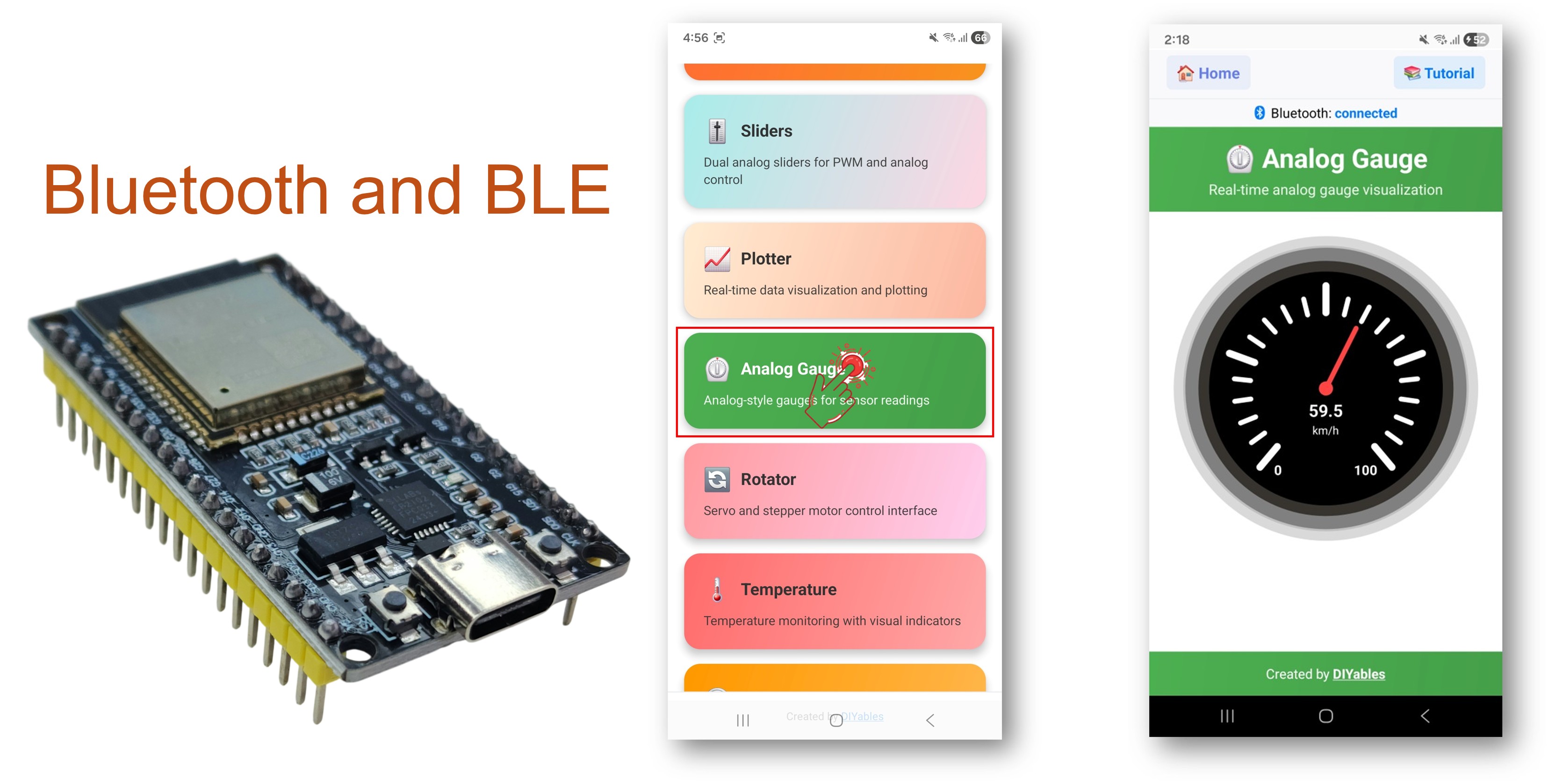
The Bluetooth Analog Gauge example provides a classic analog meter-style display accessible through the DIYables Bluetooth STEM app. Designed for ESP32 boards with support for both BLE (Bluetooth Low Energy) and Classic Bluetooth connections. Send numeric values with configurable range and unit labels — perfect for speedometers, pressure gauges, voltage meters, and any application requiring an analog dial display.
This example supports two Bluetooth modes:
- ESP32 BLE (Bluetooth Low Energy): Works on both Android and iOS
- ESP32 Classic Bluetooth: Works on Android only. iOS does not support Classic Bluetooth. Use BLE if you need iOS support.
Features
- Analog Gauge Display: Classic dial/meter-style visualization
- Configurable Range: Set minimum and maximum values for the gauge
- Custom Units: Display km/h, PSI, V, %, or any custom unit string
- Real-Time Updates: Send live readings with smooth needle movement
- Request Callback: App can request current value on demand
- BLE & Classic Bluetooth: Choose the Bluetooth mode that suits your project
- Cross-Platform: BLE mode works on both Android and iOS; Classic Bluetooth works on Android
- Low Power Option: BLE mode consumes less power than Classic Bluetooth
Hardware Used In This Tutorial
Or you can buy the following kits:
| 1 | × | DIYables ESP32 Starter Kit (ESP32 included) | |
| 1 | × | DIYables Sensor Kit (18 sensors/displays) |
ESP32 Code
Quick Instructions
Follow these instructions step by step:
- If this is your first time using the ESP32, refer to the tutorial on setting up the environment for ESP32 in the Arduino IDE.
- Connect the ESP32 board to your computer using a USB cable.
- Launch the Arduino IDE on your computer.
- Select the appropriate ESP32 board and COM port.
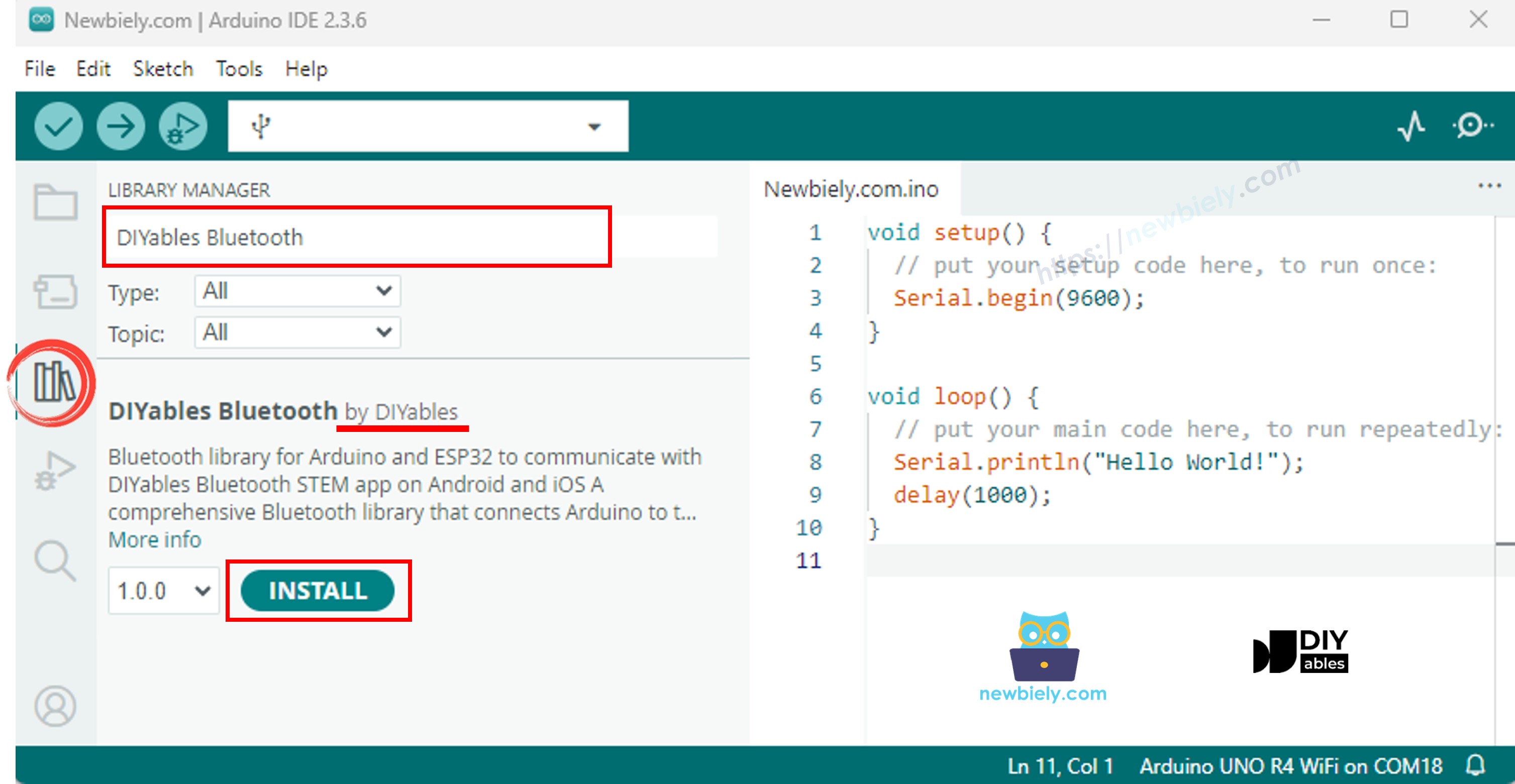
- Navigate to the Libraries icon on the left bar of the Arduino IDE.
- Search "DIYables Bluetooth", then find the DIYables Bluetooth library by DIYables
- Click Install button to install the library.
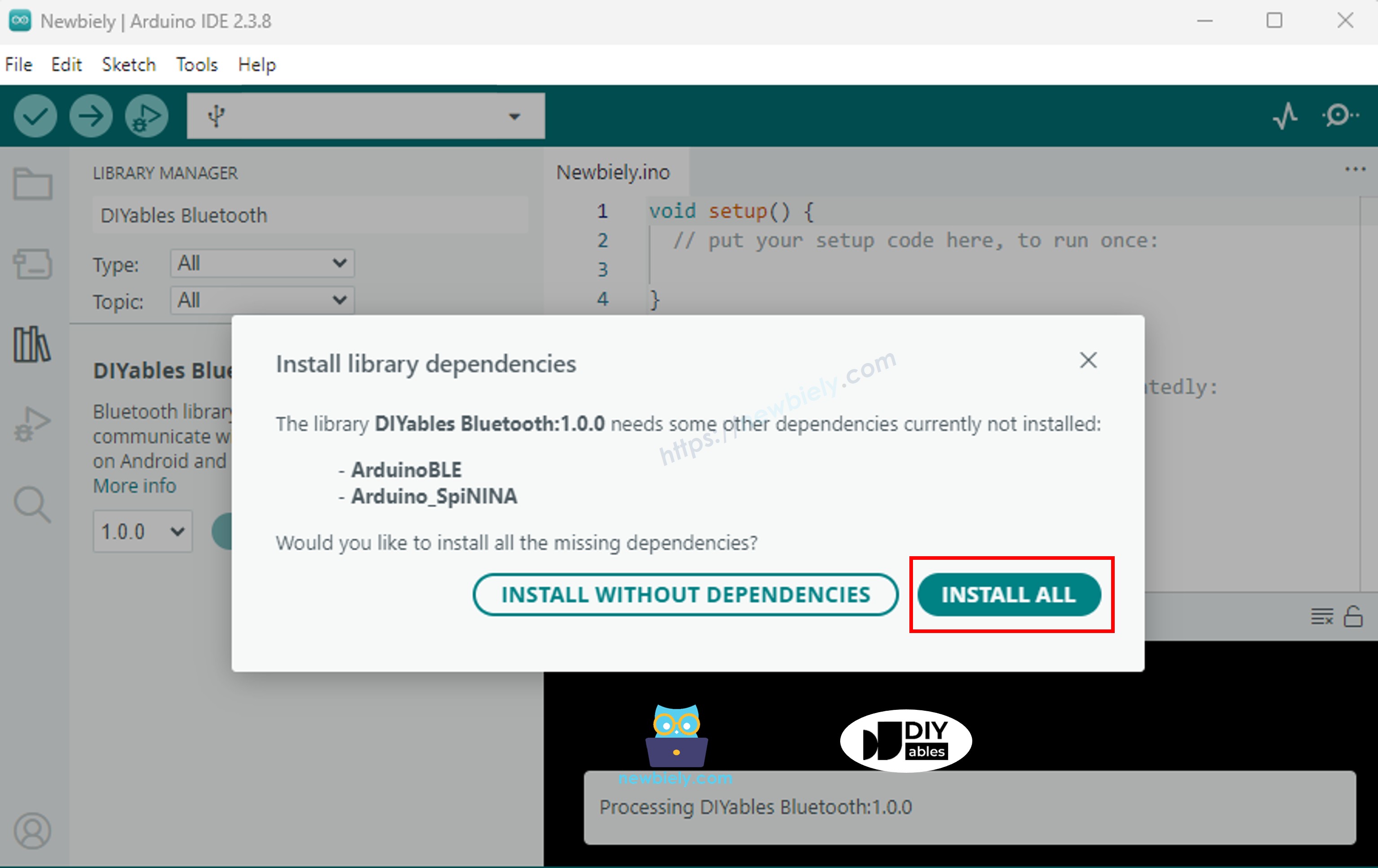
- You will be asked for installing some other library dependencies
- Click Install All button to install all library dependencies.
Choose one of the two Bluetooth modes below depending on your needs:
ESP32 Classic Bluetooth Code (works with app on Android only)
Note: Classic Bluetooth is NOT supported on iOS. If you need iOS support, use the BLE code below.
- On Arduino IDE, Go to File Examples DIYables Bluetooth Esp32Bluetooth_AnalogGauge example, or copy the above code and paste it to the editor of Arduino IDE
- Click Upload button on Arduino IDE to upload code to ESP32
- Open the Serial Monitor
- Check out the result on Serial Monitor. It looks like the below:
ESP32 BLE Code (works with app on both Android and iOS)
- On Arduino IDE, Go to File Examples DIYables Bluetooth Esp32BLE_AnalogGauge example, or copy the above code and paste it to the editor of Arduino IDE
- Click Upload button on Arduino IDE to upload code to ESP32
- Open the Serial Monitor
- Check out the result on Serial Monitor. It looks like the below:
Mobile App
- If you are using the ESP32 Classic Bluetooth code, you need to pair the ESP32 with your Android phone before opening the app:
- Go to your phone's Settings > Bluetooth
- Make sure Bluetooth is turned on
- Your phone will scan for available devices
- Find and tap "ESP32_Gauge" in the list of available devices
- Confirm the pairing request (no PIN required)
- Wait until it shows "Paired" under the device name
- If you are using the ESP32 BLE code, no pairing is needed. Just proceed to the next step.
- Open the DIYables Bluetooth App
- When opening the app for the first time, it will ask for permissions. Please grant the following:
- Nearby Devices permission (Android 12+) / Bluetooth permission (iOS) - required to scan and connect to Bluetooth devices
- Location permission (Android 11 and below only) - required by older Android versions to scan for BLE devices
- Make sure Bluetooth is turned on on your phone
- On the home screen, tap the Connect button. The app will scan for both BLE and Classic Bluetooth devices.
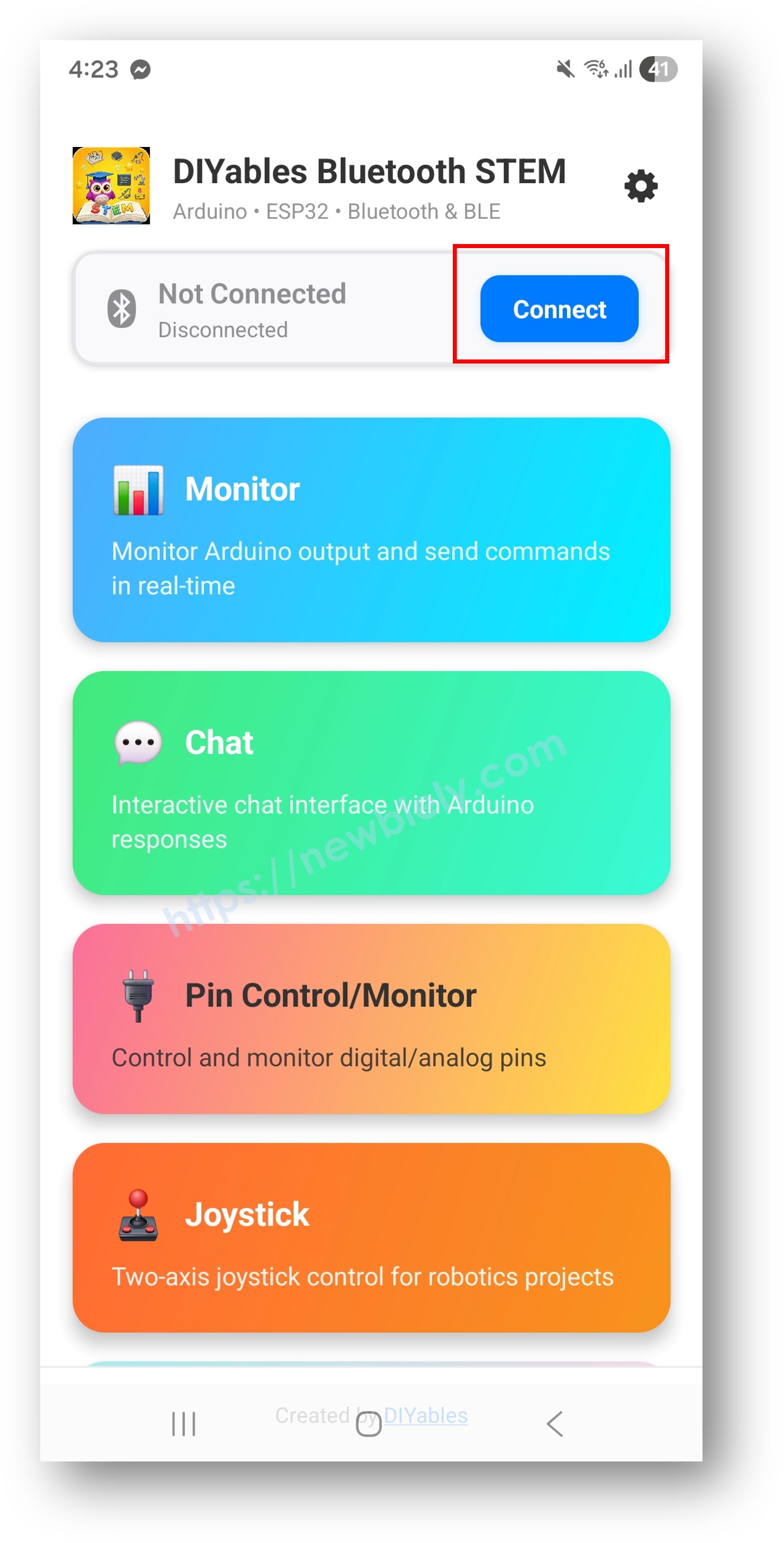
- Find and tap your device in the scan results to connect:
- For Classic Bluetooth: tap "ESP32_Gauge"
- For BLE: tap "ESP32BLE_Gauge"
- Once connected, the app automatically goes back to the home screen. Select the Analog Gauge app from the app menu.
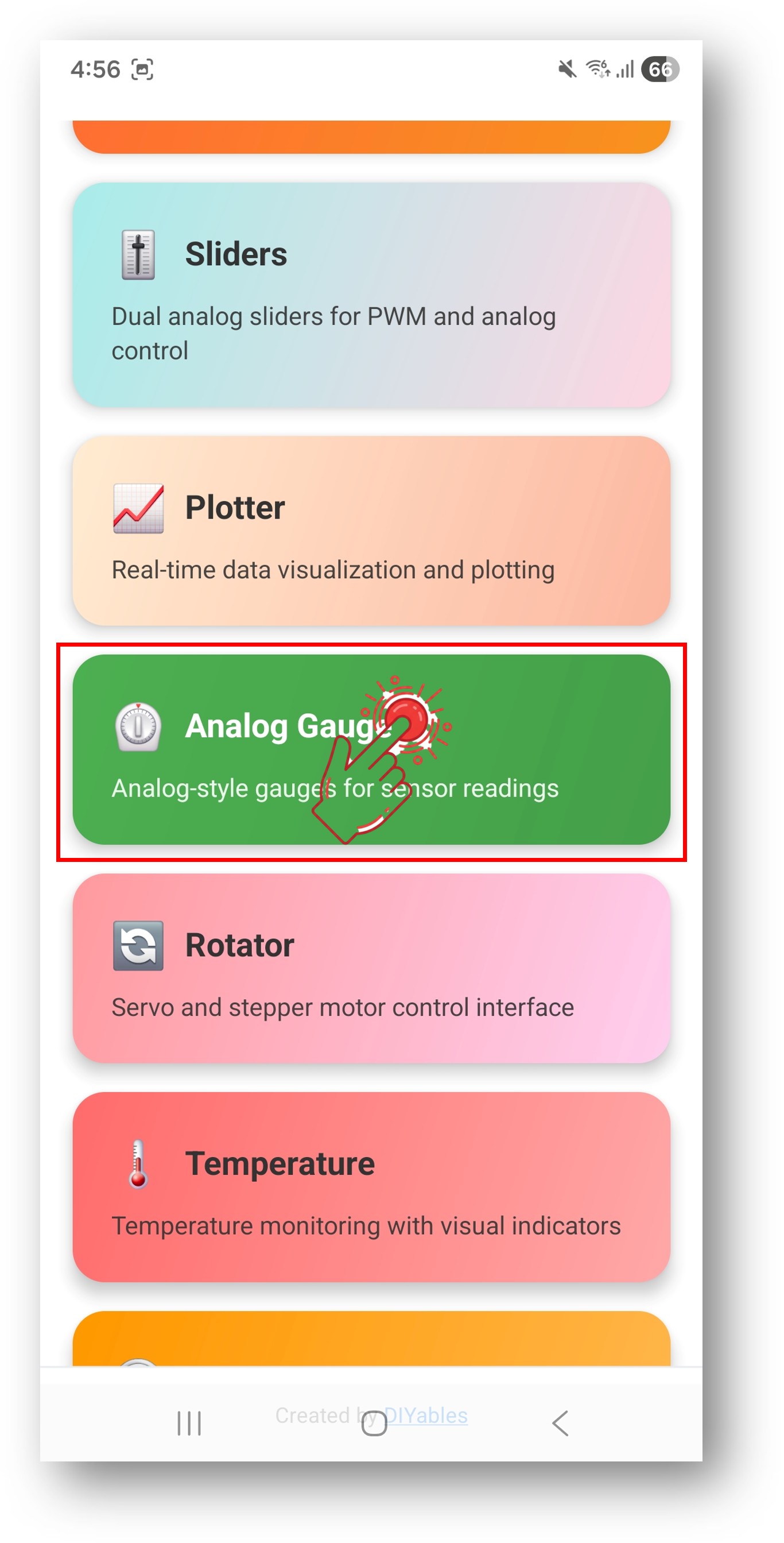
Note: You can tap the settings icon on the home screen to hide/show apps on the home screen. For more details, see the DIYables Bluetooth App User Manual.
- The analog gauge will display the current value with a moving needle
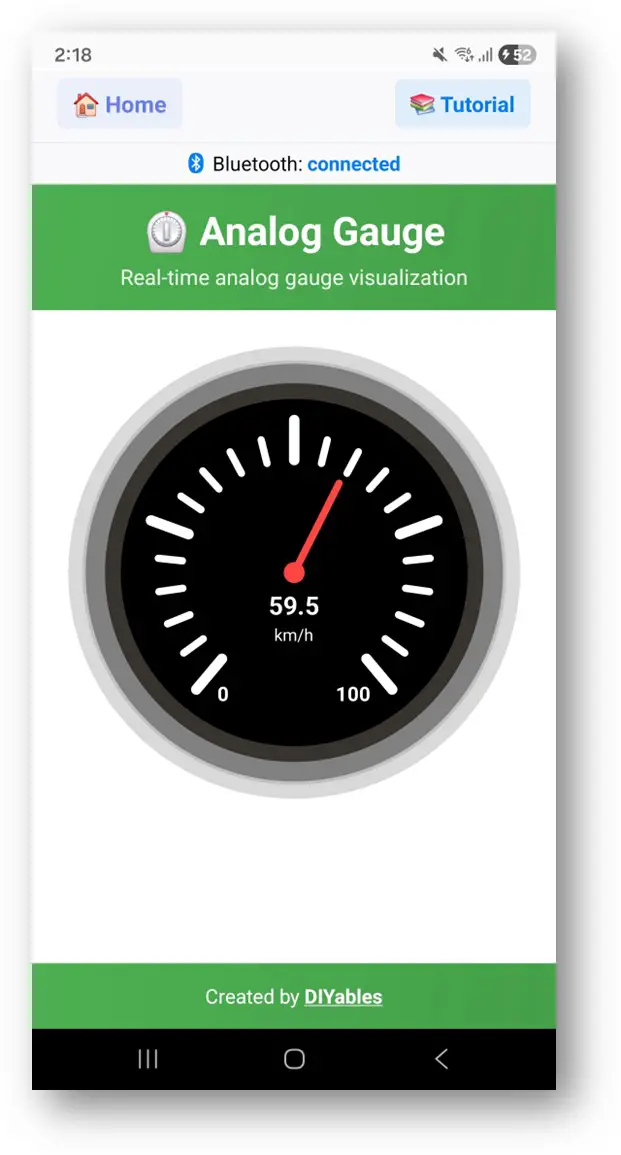
Now look back at the Serial Monitor on Arduino IDE. You will see:
- Watch the gauge needle move in real time in the app
Creative Customization - Adapt the Code to Your Project
Configure Gauge Range and Unit
Set the display range and unit:
Send Gauge Value
Handle Value Requests from App
Handle Connection Events
How to Use the Analog Gauge
App Interface
The analog gauge interface in the DIYables Bluetooth App shows:
- Dial/Needle: Classic analog meter with moving needle
- Numeric Display: Shows exact current value
- Unit Label: Displays the configured unit string
- Scale Markings: Shows graduated scale from min to max
Common Unit Configurations
- Speed: DIYables_BluetoothAnalogGauge(0.0, 200.0, "km/h")
- Pressure: DIYables_BluetoothAnalogGauge(0.0, 100.0, "PSI")
- Voltage: DIYables_BluetoothAnalogGauge(0.0, 5.0, "V")
- Percentage: DIYables_BluetoothAnalogGauge(0.0, 100.0, "%")
- RPM: DIYables_BluetoothAnalogGauge(0.0, 8000.0, "RPM")
Programming Examples
Voltage Meter
Pressure Gauge (BMP280)
Current Sensor (ACS712)
Speed from Encoder
Advanced Programming Techniques
Smooth Needle Movement
Peak Hold
Range Auto-Scaling
Hardware Integration Ideas
Analog Sensors
Any sensor with analog output can drive the gauge: potentiometers, force sensors, flex sensors, and more.
I2C/SPI Sensors
Use I2C sensors like BMP280 (pressure), INA219 (current/power), or SPI sensors for high-speed measurement.
Pulse/Frequency Sensors
Speed encoders, flow meters, and RPM sensors using interrupt-based counting.
Load Cells (HX711)
Weight measurement with the HX711 amplifier for kitchen scales or industrial weighing.
BLE vs Classic Bluetooth - Which to Choose?
| Feature | BLE (Esp32BLE_AnalogGauge) | Classic Bluetooth (Esp32Bluetooth_AnalogGauge) |
|---|---|---|
| iOS Support | ? Yes | ? No |
| Android Support | ? Yes | ? Yes |
| Power Consumption | Low | Higher |
| Range | ~30-100m | ~10-100m |
| Data Rate | Lower | Higher |
| Pairing Required | No (auto-connect) | Yes (manual pairing) |
| Best For | Battery-powered, cross-platform | High throughput, Android-only |
Troubleshooting
Common Issues
1. Cannot find the device in the app
- Make sure the ESP32 is powered on and the sketch is uploaded
- For BLE: Ensure your phone's Bluetooth and Location are enabled
- For Classic Bluetooth: Pair the device first in phone's Bluetooth settings
- Check that the correct partition scheme is selected (Huge APP)
2. Gauge shows 0 or incorrect value
- Verify sensor wiring and connections
- Check sensor reading with Serial Monitor first
- Ensure the value is within the configured range
- Verify unit and range configuration in constructor
3. Gauge needle not moving smoothly
- Increase the update frequency (smaller interval in millis() check)
- Apply smoothing/filtering to sensor readings
- Check for sensor noise or unstable readings
4. Values outside gauge range
- Adjust range with setRange(min, max) to match your sensor output
- Values outside the range will show but may clip at min/max
- Consider auto-scaling for unknown ranges
5. Connection drops frequently
- Move closer to the ESP32 (reduce distance)
- For BLE: Check for interference from other BLE devices
- For Classic Bluetooth: Ensure stable power supply to ESP32
6. Sketch too large / not enough space
- In Arduino IDE, go to Tools > Partition Scheme and select "Huge APP (3MB No OTA/1MB SPIFFS)" or "No OTA (Large APP)"
- The default partition scheme only provides ~1.2MB for app code, which is not enough for Bluetooth libraries
- This setting gives ~3MB by sacrificing the OTA (over-the-air update) partition
Debug Tips
Add comprehensive debugging:
Project Ideas
Vehicle & Motion
- Speedometer for RC car or bicycle
- RPM tachometer for motors
- G-force meter for acceleration
- Tilt angle indicator
Electrical & Power
- Voltmeter (battery voltage monitor)
- Ammeter (current consumption)
- Wattmeter (power usage)
- Battery level gauge
Environmental
- Barometric pressure gauge
- Wind speed (anemometer)
- UV index meter
- Sound level meter (dB)
Industrial
- Weight scale display
- Flow rate meter
- Tank level indicator
- Torque meter
Integration with Other Bluetooth Apps
Combine with Bluetooth Temperature
Gauge for one metric, temperature for another:
Combine with Bluetooth Table
Gauge for visual, table for details:
Next Steps
After mastering the Bluetooth Analog Gauge example, try:
- Bluetooth Temperature - For dedicated temperature display
- Bluetooth Plotter - For trend visualization over time
- Bluetooth Table - For structured multi-value display
- Multiple Bluetooth Apps - Combining gauge with other displays
Support
For additional help:
- Check the API Reference documentation
- Visit DIYables tutorials
- Arduino community forums