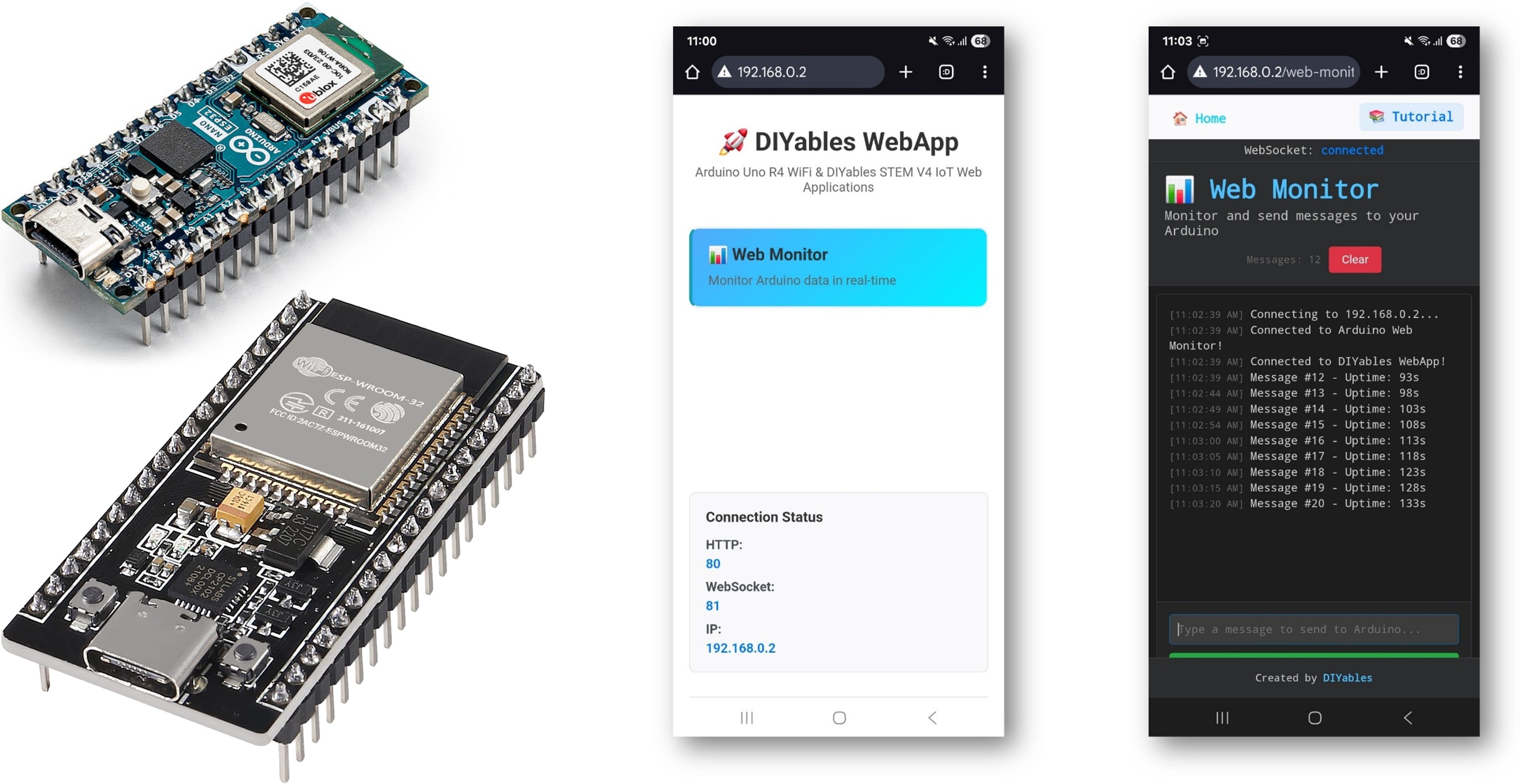
The WebMonitor example replaces the traditional Serial Monitor with a web-based interface that's accessible from any device on your network. Designed for ESP32 educational platform with enhanced IoT capabilities, built-in sensor monitoring, and seamless integration with the educational ecosystem.
Watch this step-by-step video tutorial demonstrating how to use WebMonitor with the DIYables ESP32 WebApps:
Features
Real-time Serial Output: View ESP32 messages instantly in browser
Command Input: Send commands from web interface to Arduino
Dark Theme: Easy-on-eyes terminal-style interface
Auto-scroll: Automatically scrolls to latest messages
Timestamp: All messages include timestamps
Command History: Navigate previous commands with arrow keys
Clear Function: Clear the monitor display
Copy/Paste: Full text selection and copying support
Disclosure: Some of the links in this section are Amazon affiliate links, meaning we may earn a commission at no additional cost to you if you make a purchase through them. Additionally, some links direct you to products from our own brand, DIYables .
Click Upload button on Arduino IDE to upload code to ESP32
Open the Serial Monitor
Check out the result on Serial Monitor. It looks like the below
Newbiely | Arduino IDE 2.3.8
──
☐
✕
File
Edit
Sketch
Tools
Help
ESP32 Dev Module
Newbiely.ino
···
8Serial.println("Hello World!");
Output
Serial Monitor
Message (Enter to send message to 'ESP32 Dev Module' on 'COM15')
New Line
9600 baud
DIYables WebApp - Web Monitor Example
INFO: Added app /
INFO: Added app /web-monitor
DIYables WebApp Library
Platform: ESP32
Network connected!
IP address: 192.168.0.2
HTTP server started on port 80
Configuring WebSocket server callbacks...
WebSocket server started on port 81
WebSocket URL: ws://192.168.0.2:81
WebSocket server started on port 81
==========================================
DIYables WebApp Ready!
==========================================
📱 Web Interface: http://192.168.0.2
🔗 WebSocket: ws://192.168.0.2:81
📋 Available Applications:
🏠 Home Page: http://192.168.0.2/
📊 Web Monitor: http://192.168.0.2/web-monitor
==========================================
Ln 11, Col 1
ESP32 Dev Module on COM15
2
If you do not see anything, reboot ESP32 board.
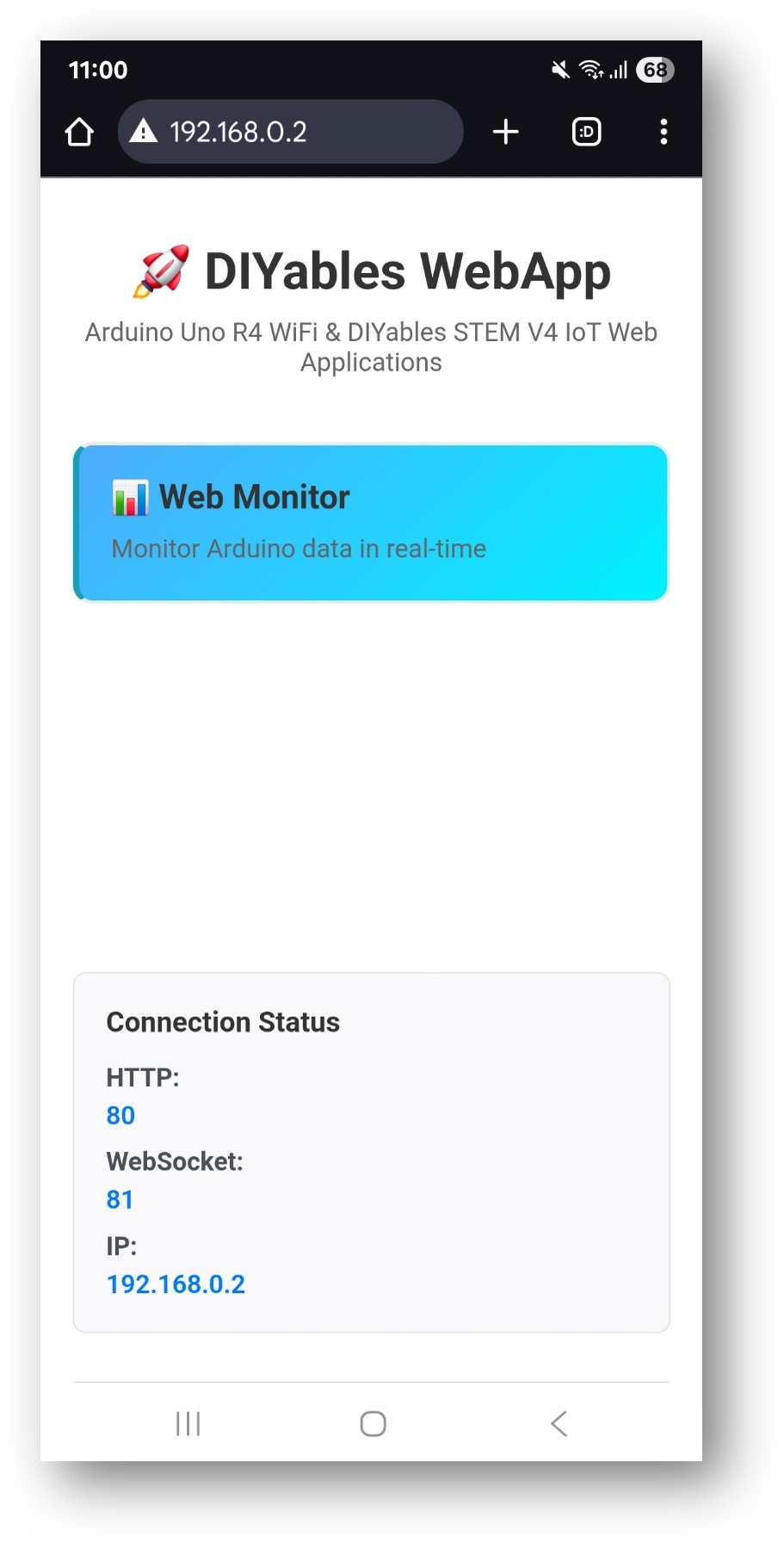
Take note of the IP address displayed, and enter this address into the address bar of a web browser on your smartphone or PC.
Example: http://192.168.0.2
You will see the home page like below image:
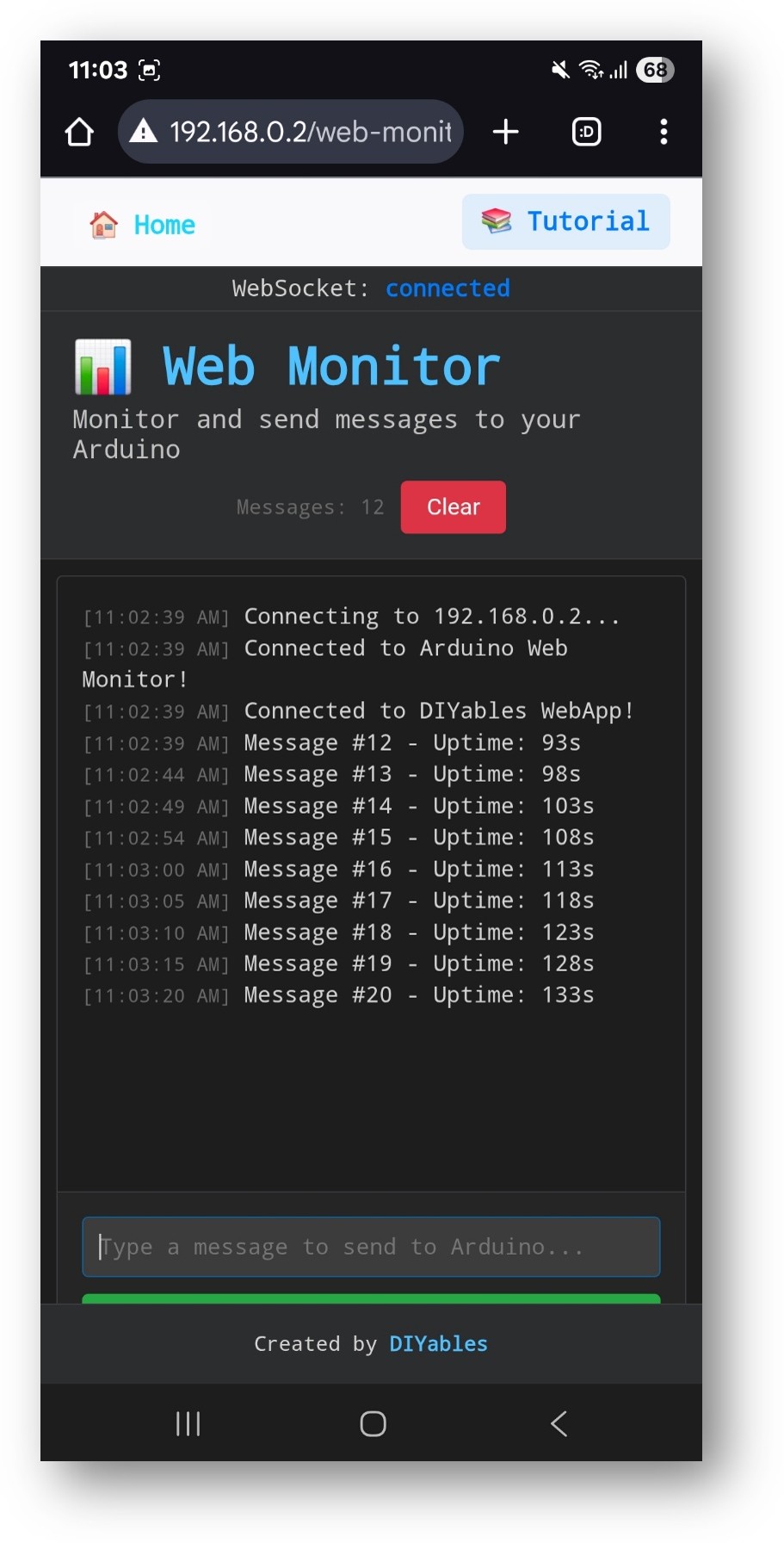
Click to the Web Monitor link, you will see the Web Monitor app's UI like the below:
Or you can also access the page directly by IP address followed by /web-monitor. For example: http://192.168.0.2/web-monitor
Try sending commands to your ESP32 through the web monitor interface and view real-time serial output from your Arduino.
How to Use
Viewing Serial Output
Open the web monitor interface
ESP32 automatically sends status messages every 5 seconds
All Serial.println() output appears in the monitor
Messages are timestamped automatically
Sending Commands
Type commands in the input field at the bottom
Press Enter or click Send button
ESP32 processes the command and responds
Built-in Commands
The example includes these demonstration commands:
LED Control
"led on" → Turns on built-in LED
"led off" → Turns off built-in LED
"led toggle" → Toggles LED state
"blink" → Blinks LED 3 times
System Commands
"status" → Shows ESP32 status and uptime
"help" → Lists available commands
"reset counter" → Resets message counter
"memory" → Shows free memory information
Debug Commands
"test" → Sends test message
"echo [message]" → Echoes back your message
"repeat [n] [message]" → Repeats message n times
Interface Features
Keyboard Shortcuts
Enter → Send command
↑/↓ Arrow Keys → Navigate command history
Ctrl+L → Clear monitor (if implemented)
Ctrl+A → Select all text
Monitor Controls
Auto-scroll → Automatically scrolls to new messages
Clear → Clears the monitor display
Copy → Copy selected text to clipboard
Creative Customization - Build Your Advanced Debugging Tool
Expand this web monitor example to create a powerful debugging and control interface for your projects! Add custom commands, sensor monitoring, and real-time data visualization to suit your creative needs.
Code Structure
Main Components
WebApp Server: Handles HTTP and WebSocket connections
Monitor Page: Provides terminal-style web interface
Message Handler: Processes incoming commands
Serial Bridge: Forwards Serial output to web interface
Key Functions
// Handle commands from web interfacevoid handleWebCommand(Stringcommand, String clientId) {// Process command and execute actions}// Send message to web monitorvoidsendToWebMonitor(String message) {// Forward message via WebSocket}
Adding Custom Commands
To add new commands, modify the handleWebCommand function:
if (command.startsWith("your_command")) {// Extract parametersString param = command.substring(12); // After "your_command"// Execute your actiondigitalWrite(LED_BUILTIN, HIGH);// Send responsesendToWebMonitor("Command executed: " + param);}
Please feel free to share the link of this tutorial. However, Please do not use our content on any other websites. We invested a lot of effort and time to create the content, please respect our work!